
Background Tasks and Advanced Settings
Bearcat packs, uploads, and checks files in the background. Find the tasks under Activity > Background tasks and their settings under System > Configurations.
Background tasks
Section titled “Background tasks”Each task runs on its own schedule.
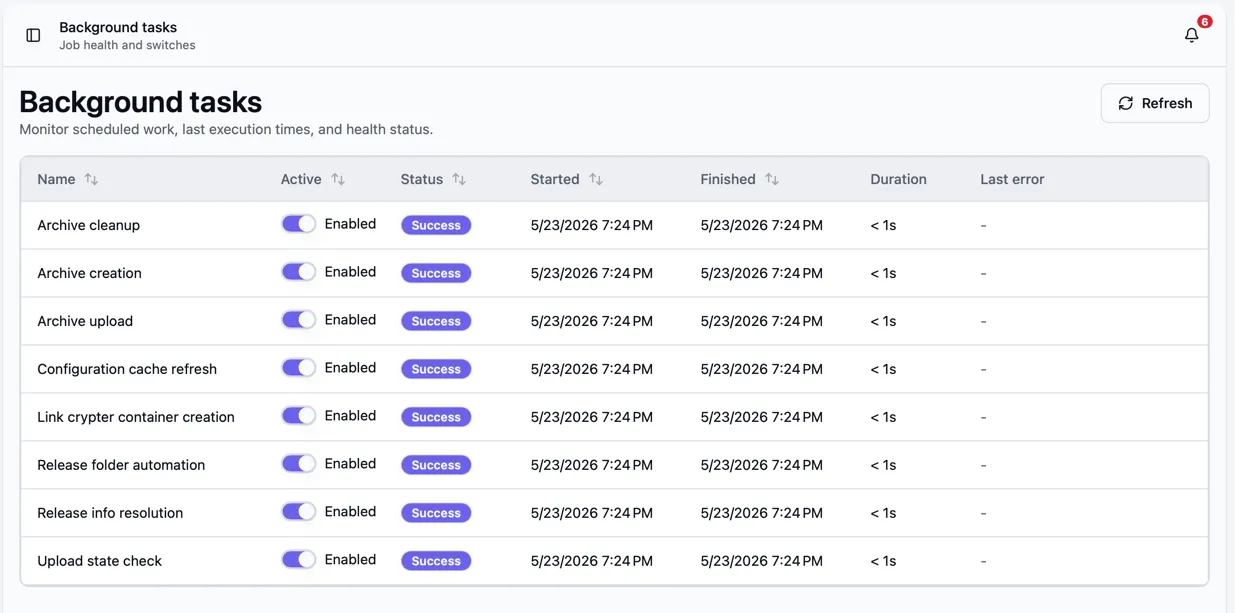
The table shows each task’s status, start and finish times, duration, and last error. Use Active to enable or disable future runs. Running tasks are not canceled. All tasks are enabled by default.
Available background tasks
Section titled “Available background tasks”| Task | Runs | What it does |
|---|---|---|
| Configuration cache refresh | Every 5 minutes | Refreshes cached settings. Changes made in the UI apply immediately. |
| Release folder automation | Every 2 minutes | Creates releases from matching direct subfolders using the selected template, once the folder checks pass. |
| Remote source scan | Every 2 minutes | Finds matching folders on FTP or FTPS servers and queues them once the remote folder checks pass. |
| Remote source download | Every 20 seconds | Downloads queued remote folders. |
| Remote download verification and extraction | Every 20 seconds | Checks completed downloads against their SFV files and extracts archives when the automation is set to do so. |
| Remote download release creation | Every 20 seconds | Creates releases from completed downloads using their selected templates. |
| Remote download raw file cleanup | Every 2 minutes | Converts downloaded releases to unmanaged and removes their raw files when Keep raw files is off and the cleanup conditions are met. |
| Release info resolution | Every 10 minutes | Fills in missing scene information, NFOs, external IDs, and metadata from active sources. |
| Archive creation & restore | Every 20 seconds | Reuses, restores, or creates archives for waiting uploads. |
| Auto cleanup | Every 30 minutes | Applies enabled cleanup rules after their retention periods. Deletes local working copies of stored archives once their uploads have finished. |
| Archive upload | Every 20 seconds | Uploads archives to the configured hosters. |
| Image upload | Every 30 seconds | Uploads release cover images to configured image hosters when a cover image URL is available. |
| Screenshot creation | Every minute | Creates screenshots and screenshot grids for managed releases when the corresponding options are enabled. |
| Upload state check | Every 20 seconds | Checks links and schedules first uploads and automatic reuploads. |
| Link crypter container creation | Every 20 seconds | Creates link crypter containers for completed uploads. |
| SQLite query planner statistics | At startup, then daily | Only with SQLite. Updates the statistics SQLite uses to choose indexes. The first run on a large database can take several seconds. Also compacts the database file (VACUUM) when at least 20 % of it is unused, for example after deleting many releases. Writes wait while this runs. |
Configurations
Section titled “Configurations”Open System > Configurations to change settings for the whole application.
Switches and dropdowns save immediately. Number fields have save and discard buttons. You can also press Enter to save or Escape to discard.
Changed settings have a dot beside their name and show the default value. Click Reset to restore the default.
Auto cleanup
Section titled “Auto cleanup”Auto cleanup is off by default. Under Configurations > Auto cleanup, you can enable two independent rules:
- Convert releases to unmanaged automatically: stop using the release folder after a set period
(default:
14days). You can also enable Delete release folder on conversion. - Local archives after retention: Keep (default), Delete, or Move to storage folder
after Archive retention (default:
30days).
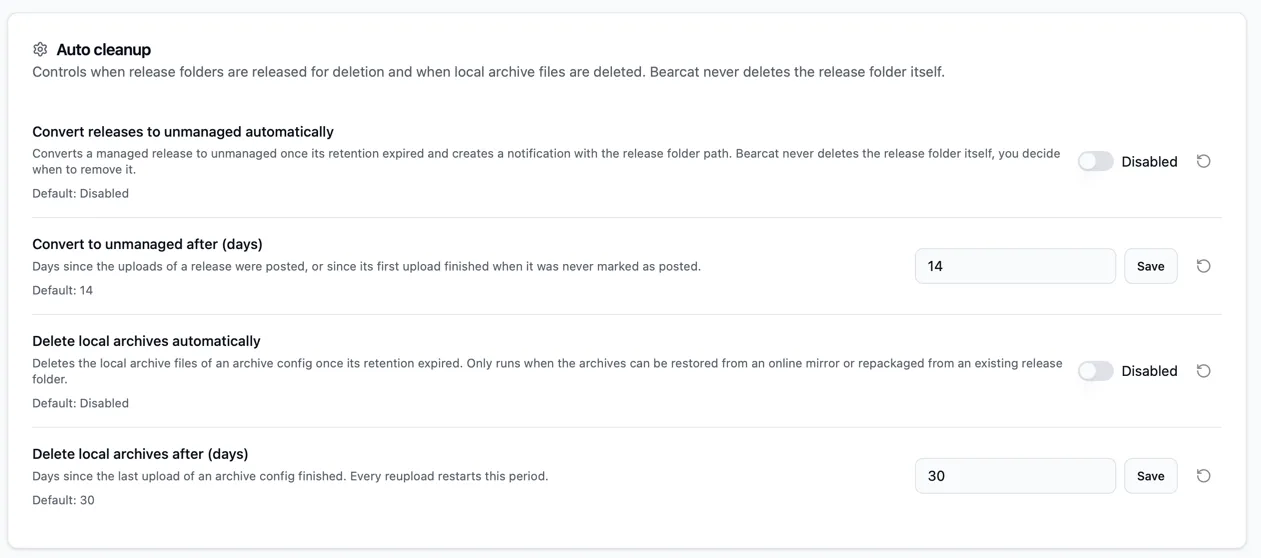
Convert releases to unmanaged automatically
Section titled “Convert releases to unmanaged automatically”After conversion, Bearcat reuploads existing archives instead of repacking the release files. The period starts at the posting date, or the first completed upload if the release was never marked as posted. Without either date, it stays managed.
Bearcat converts the release only when no upload is running and every archive configuration has a local archive or a fully online mirror. Releases with a video upload configuration stay managed.
By default, Bearcat keeps the release folder and sends you its path in a notification. You can delete the release files yourself. If the folder also holds archives, keep those files.
With Delete release folder on conversion enabled, Bearcat also deletes the folder, but only when:
- Every archive configuration has a complete archive on disk. A mirror alone is not enough.
- No archive is stored inside the release folder.
- The folder is not a drive root or a working directory and does not contain a working directory.
If these conditions are not met or deletion fails, the release still becomes unmanaged. The folder is kept, and the notification tells you why.
Local archives after retention
Section titled “Local archives after retention”The period starts at the last completed upload of the archive configuration. Every reupload restarts it.
With 0 days, the action can run on the next cleanup after uploading.
Bearcat skips archives while an upload of that archive configuration is waiting, pending, or running.
| Action | Result |
|---|---|
| Keep | Leave archive files where they are. |
| Delete | Delete archive files only if they can be restored from a fully online mirror or repacked from a managed release’s folder. |
| Move to storage folder | Move archives to an active storage folder. No mirror is required. |
Deleting archives removes their folder only if it is empty. Files on the hoster are kept. Archives in storage folders are never deleted automatically.
Existing installations with automatic archive deletion enabled keep the Delete action after updating.
Maximum size of local archives
Section titled “Maximum size of local archives”Maximum size of local archives sets how much disk space local archives can use in total (in GB).
The limit is off by default (0) and applies regardless of the retention period.
Before writing a local archive, Bearcat deletes other local archives as needed to make room within the limit. This applies when packing, restoring from a mirror, or creating a local working copy. Bearcat sorts archives by their archive configuration’s last upload, oldest first.
The same conditions apply as for the Delete action:
- The archive can be restored from a fully online mirror or repacked from a managed release’s folder.
- No upload of the archive configuration is waiting, pending, or running.
- The release is not excluded from auto cleanup.
Archives in storage folders are kept and do not count toward the total. If Bearcat cannot free enough space, it writes the archive anyway and notifies you. The limit does not apply when Local archives after retention is set to Move to storage folder.
Allow for extra free disk space: Bearcat only checks the limit before writing and may exceed it.
Exclude single releases
Section titled “Exclude single releases”Enable Exclude from auto cleanup when creating or editing a release to exempt it from both cleanup rules and the size limit.
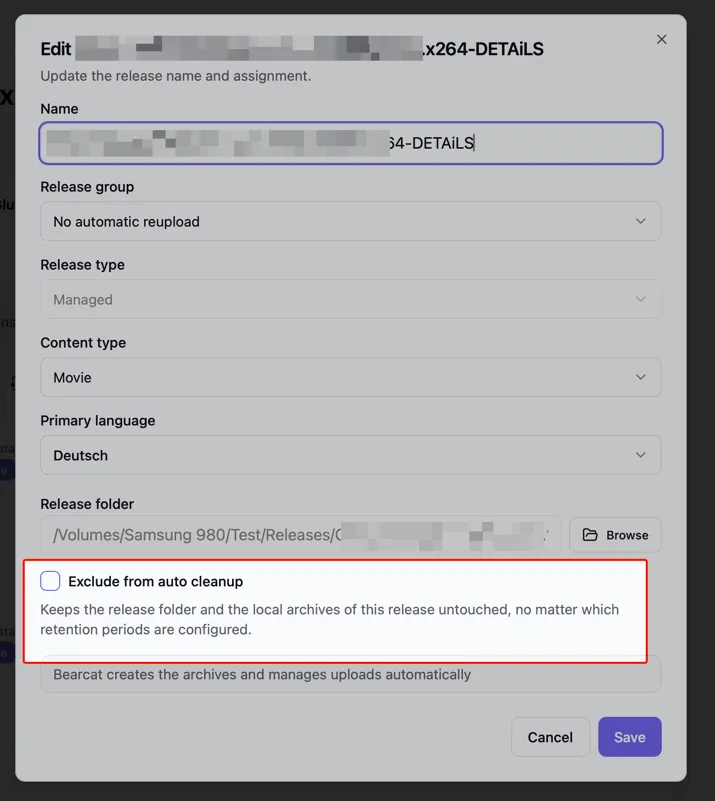
Remote downloads have a separate cleanup option. Leave Keep raw files enabled in the automation if you want to keep the downloaded release folder.
Part size unit
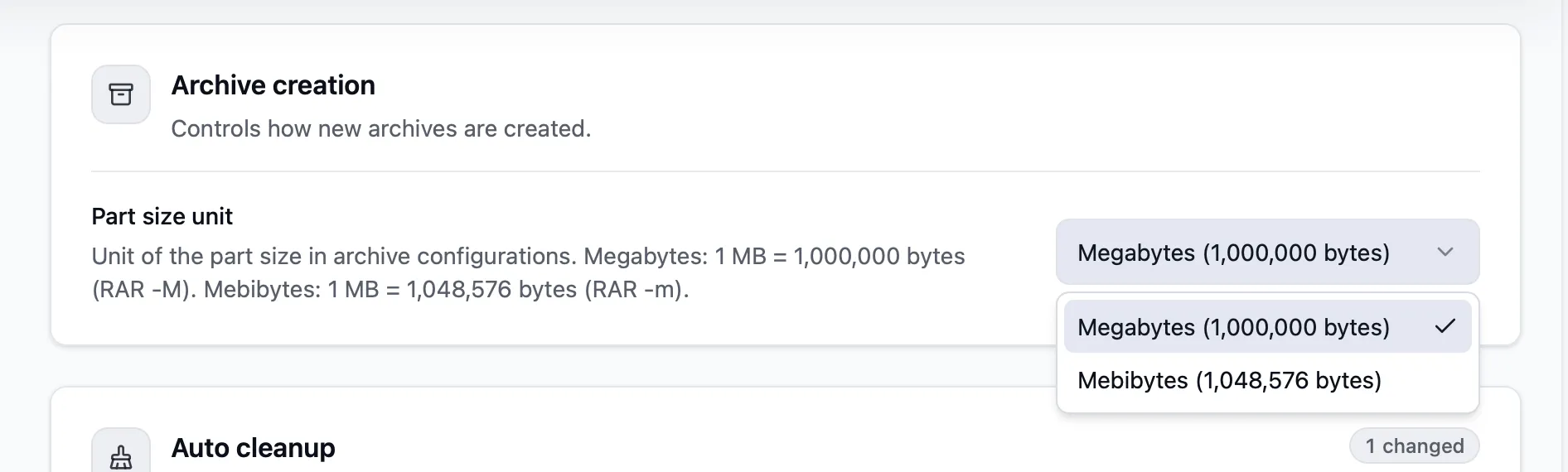
Section titled “Part size unit”Choose Part size unit under Configurations > Archive creation.
This setting applies to all archive configurations.
Megabytes (default) means 1 MB = 1,000,000 bytes, Mebibytes means 1 MB = 1,048,576 bytes.
This applies to RAR and 7-Zip.
To change the part size of many archive configurations at once, see Change part size.
Exclude files from packing
Section titled “Exclude files from packing”Under Configurations > Archive creation, use Exclude from packing to choose which files and folders Bearcat skips when creating a new archive. Clear the field to pack the entire release folder.
Separate patterns with commas. Spaces around commas are optional.
Bearcat checks file and folder names at every level of the release folder and ignores case.
* matches any number of characters and ? matches exactly one.
Patterns ending in / match folders only. All other patterns match files only.
| Pattern | What Bearcat skips |
|---|---|
*.sfv, *.txt |
Any file ending in .sfv or .txt, including Sub/CHECK.SFV. |
part?.rar |
Files with exactly one character between part and .rar, such as part1.rar. |
sample*/ |
Folders such as Sample or Samples, along with their contents. |
The patterns apply only to files and folders in the release folder. Bearcat still packs additional archive contents and the nonce file as configured. If no files in the release folder are left to pack, archive creation fails.
Archive repackaging
Section titled “Archive repackaging”Hosters can recognise files by their MD5 hash. Before reuploading to the same hoster type, Bearcat gives the files being uploaded new hashes. Parts not uploaded again keep their hashes and links.
- RAR: Bearcat appends zero bytes until each file’s hash is new. It keeps the hash history even after local files are deleted. Archives still extract normally, and the configured part size usually stays the same. Compression and solid mode follow the selected strategy.
- 7-Zip: Bearcat repacks the release using the Repackaging strategy under Configurations:
| Strategy | Effect on 7-Zip archives |
|---|---|
| Change archive file size by 1 MB (default) | Each new archive uses parts 1 MB larger than the previous archive. The first uses the configured size. No compression or solid mode. |
| Nonce only, no compression | Changes the random __nonce.txt. Uses little CPU, but some parts may keep their old hash. |
| Solid archive with compression | Spreads the nonce change more reliably across parts, but uses more CPU. |
Create nonce file is enabled by default in the archive configuration.
Without it, 7-Zip increases the part size by 1 MB with each repack, regardless of the strategy.
RAR still uses zero bytes for new hashes.
For older RAR archives with missing hashes, the strategy also determines the part size.
The default strategy increases it by 1 MB when repacking.
Folder automation
Section titled “Folder automation”Under Configurations > Folder automation, set when Bearcat turns a watched folder into a release. Both conditions must be met:
- Its total file count and size stay unchanged for Folder stability, default
5minutes. - It reaches Minimum folder size, default
1MB.
This helps avoid creating releases while files are still being copied.
Increase the stability period for slow or interrupted copies. Set the minimum size to 0 to allow empty folders.
Manual release creation and metadata lookup under Release info are unaffected.
Remote downloads
Section titled “Remote downloads”Find settings for FTP / FTPS downloads under Configurations > Remote downloads. They apply independently of local folder automation.
| Setting | Default | Effect |
|---|---|---|
| Folder stability | 5 min |
Wait until the remote folder’s file count and total size stay unchanged for this long. |
| Minimum folder size | 1 MB |
Keep smaller folders in Observing. Set to 0 to disable the size check. |
| Maximum parallel file downloads | 4 |
Limit how many files are downloaded at the same time. The source’s Max connections also applies. |
| Download retry delay | 30 s |
Wait this long before retrying a failed download attempt. |
Increase the stability period if files arrive slowly or uploads to the FTP server often pause. Bearcat downloads one release folder at a time, with several files in parallel. Lower the connection limit if the server rejects simultaneous transfers.
Initial upload cooldown
Section titled “Initial upload cooldown”Find Initial upload cooldown under Configurations > Initial uploads (default: 5 minutes). It gives you time to finish setting up a release before archiving and uploading begin.
Once an upload configuration exists and the release is older than the cooldown, the next Upload state check run creates the first upload record.
The wait is measured from release creation. Set it to 0 to allow the first upload on the next check.
Changes only affect upload configurations without an upload. Existing uploads are not canceled or delayed.
Upload concurrency
Section titled “Upload concurrency”Under Configurations > Upload concurrency, Maximum parallel uploads limits the number
of files uploaded at once across all hosters (default: 10).
Each hoster’s own limit also applies.
View and, where allowed, override individual limits on the Hoster registrations page. See Parallel uploads per hoster.
Maximum upload speed (MB/s) is empty by default, which means no limit. It caps the combined upload
speed of all running uploads across all hosters. Decimal values such as 0.5 or 0,5 are allowed.
Each hoster registration can set its own limit as well. See
Upload speed limit per hoster.
Very low speed limits can cause uploads to time out.
Under Upload start order, choose which waiting uploads start first: Oldest first (default) or Initial uploads before reuploads. See Start order.
ffmpeg
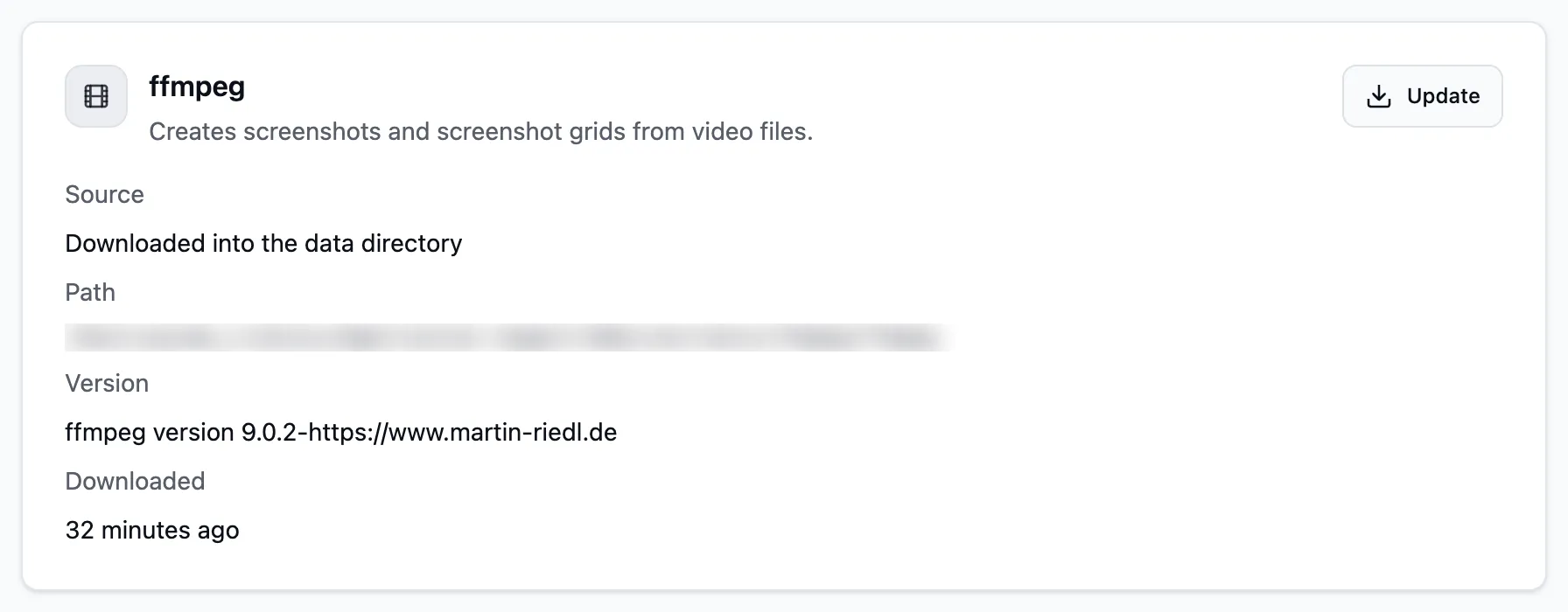
Section titled “ffmpeg”Bearcat uses ffmpeg to create screenshots and screenshot grids from video files. ffmpeg is not bundled.
Bearcat downloads it when needed and stores it in tools/ffmpeg in the data directory.
The ffmpeg card at the bottom of Configurations shows the installed version.
You can download or update ffmpeg there.
| Platform | Download source |
|---|---|
| Windows x64, Linux x64 (including Docker) | BtbN FFmpeg builds |
| macOS Apple silicon | martin-riedl.de |
To use your own ffmpeg installation, set Media:FfmpegPath (environment variable Media__FfmpegPath)
to its path. On other platforms, such as Linux ARM64, you must install ffmpeg yourself
and set this path.
Database
Section titled “Database”New Desktop, Windows service, and Docker installations use SQLite. Existing PostgreSQL setups keep using PostgreSQL.
Database settings are read at startup from environment variables or a settings file:
| Installation | Where to set them |
|---|---|
| Docker | docker-compose.yml, or docker-compose.postgres.yml for PostgreSQL. See Run Bearcat in Docker. |
| Desktop app | Database type in the Desktop app settings. |
| Windows service | Database section in %ProgramData%\Bearcat\config.json, written by Bearcat.Cli.exe setup. |
| Setting | Environment variable | Value |
|---|---|---|
Database:Provider |
Database__Provider |
Sqlite or Postgres, case-insensitive. Not set: Postgres. |
Database:SqliteFilePath |
Database__SqliteFilePath |
Path to the SQLite database file. Not set: bearcat.db in the data directory. |
Database:ConnectionString |
Database__ConnectionString |
PostgreSQL connection string, for example Host=localhost;Database=bearcat;Username=bearcat;Password=.... Only used with Postgres. |
Bearcat checks these locations in order to find its data directory:
- Environment variable
BEARCAT_DATA_DIR - Setting
Bearcat:DataDirectory(environment variableBearcat__DataDirectory) /datainside a container- The user’s application data folder plus
Bearcat:%APPDATA%\Bearcaton Windows,~/Library/Application Support/Bearcaton macOS
The Windows service uses %ProgramData%\Bearcat as its data directory.
SQLite notes:
- Keep the SQLite database on local storage. Network shares (NFS/SMB) are unsuitable for its WAL mode.
- Back up the database together with
bearcat.keyfrom the data directory. Stop Bearcat before copying. For a backup while Bearcat is running, usesqlite3 bearcat.db ".backup bearcat-backup.db". - The SQLite query planner statistics task keeps query statistics up to date. PostgreSQL does this itself.
Changing Database:Provider does not transfer existing data. A new database starts empty.
Without Database:Provider, Bearcat uses PostgreSQL so older configurations keep working.
Time zone
Section titled “Time zone”Bearcat uses the local time zone for displayed times and time-based rules. By default, it uses the operating system’s time zone.
| Installation | Default | How to change it |
|---|---|---|
| Desktop app | Time zone of your computer | Change the time zone of your computer. |
| Windows service | Time zone of the Windows server | Add "LocalTimezone": "Europe/Berlin" to %ProgramData%\Bearcat\config.json and restart the service. |
| Docker | UTC | Set BEARCAT_TIMEZONE in .env. See Docker settings. |
The value is an IANA time zone ID such as Europe/Berlin or America/New_York.
An unknown ID stops Bearcat on startup.