
Automatic Posting
Posting rules let Bearcat choose a subforum or WordPress category, fill in a template and submit the post. Click Post in the post queue or enable automatic posting. To review and submit drafts yourself, use Posting to sites.
Each distribution site has its own rules. Bearcat skips sites with no matching rule.
What you need first
Section titled “What you need first”- A distribution site added under Registrations > Distribution site registrations, with a working login.
- A suitable post template.
- Releases in the post queue with a classification and a passed or manually approved quality gate. Groups without a quality profile pass the gate. For collections, every member release must pass or be manually approved, and at least one must be classified.
Opening the posting rules page
Section titled “Opening the posting rules page”Open Registrations > Distribution site registrations in the sidebar. The table has a Posting rules column that shows how many rules a site has.
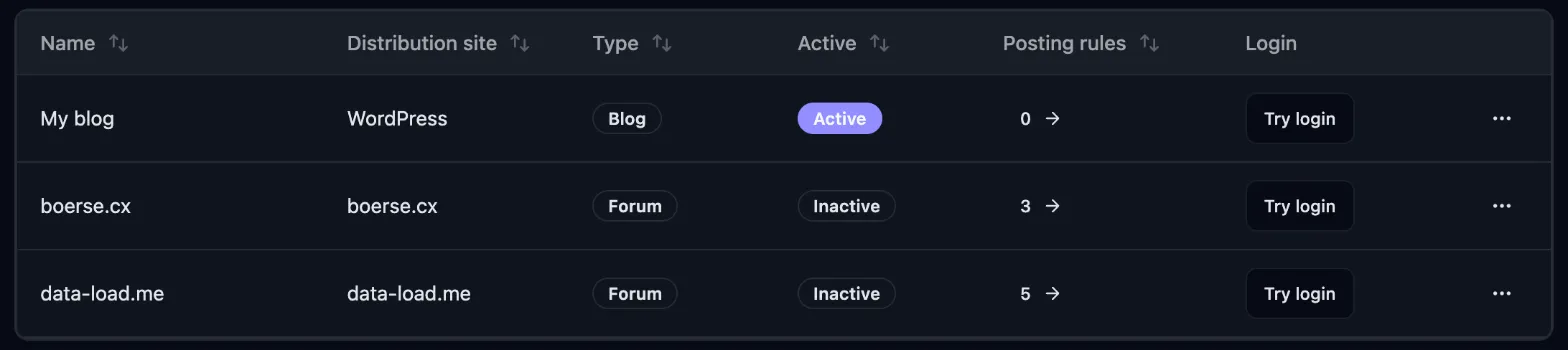
Click the number to open the page, or use Posting rules in the row menu.
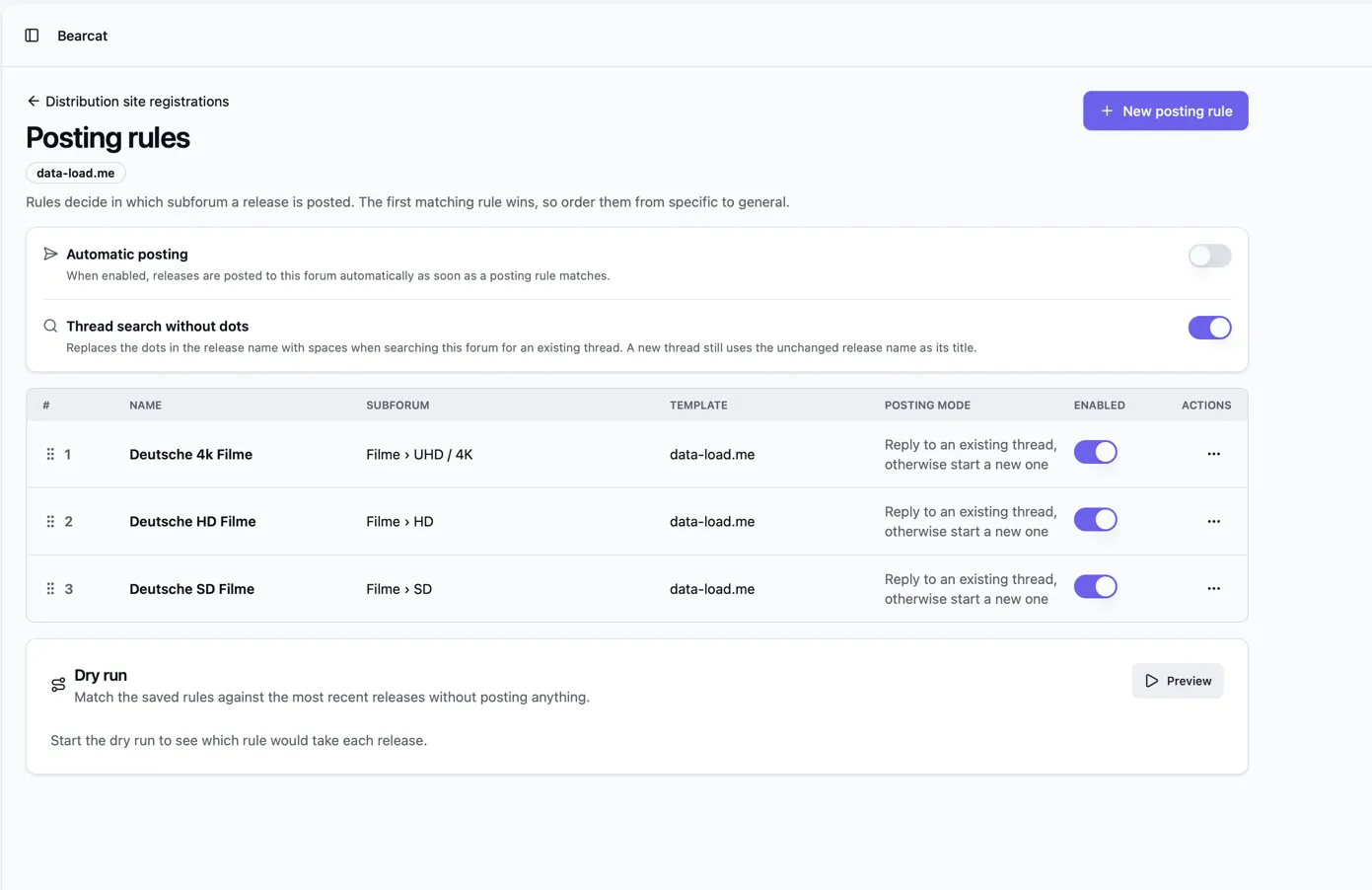
Site-wide settings
Section titled “Site-wide settings”Automatic posting is off by default. You can still preview rules and use Post in the post queue. When enabled, the “Automatic forum posting” background task runs every 15 minutes by default. It posts matching releases from the queue first, then collections. Change the interval under Background tasks.
Thread search without dots is on by default. Bearcat replaces dots with spaces when searching for threads and naming new threads and posts. For collections, it uses the collection name. Turn it off to keep dots in searches and new titles. On blogs, the setting only affects the post title.
Minimum seconds between posts defaults to 30. The background task waits at least this long between two posts or updates to the same site, including failed attempts. Clicking Post or Update post skips the wait.
Hosters, link crypters and image hosters
Section titled “Hosters, link crypters and image hosters”On the Posting rules page, below the site-wide settings, choose which hosters, link crypters and image hosters are allowed in posts. These hoster rules apply to automatic posts and manual drafts.
Each of the three categories has two lists:
- Required: the post must include at least one selected provider.
- Forbidden: Bearcat removes uploads, containers and images from these providers.
An empty list adds no restrictions. Automatic posting skips the site if a Required list has no provider left in the post or if all uploads, all containers or all images were removed.
Bearcat checks all uploads, upload slots and member releases together. Containers with several hosters, such as those for all hosters of a release or for collection upload slots, are checked only against the link crypter lists. Forbidden hosters inside these containers are not filtered out.
The template variable imagelinks.<config> is empty if its image hoster is forbidden.
Check the value with if or use a separate template for this site.
Skipped posts do not trigger a notification. Click Post in the post queue to see the reason. A manual draft shows a warning. You can still submit the draft.
Adding a rule
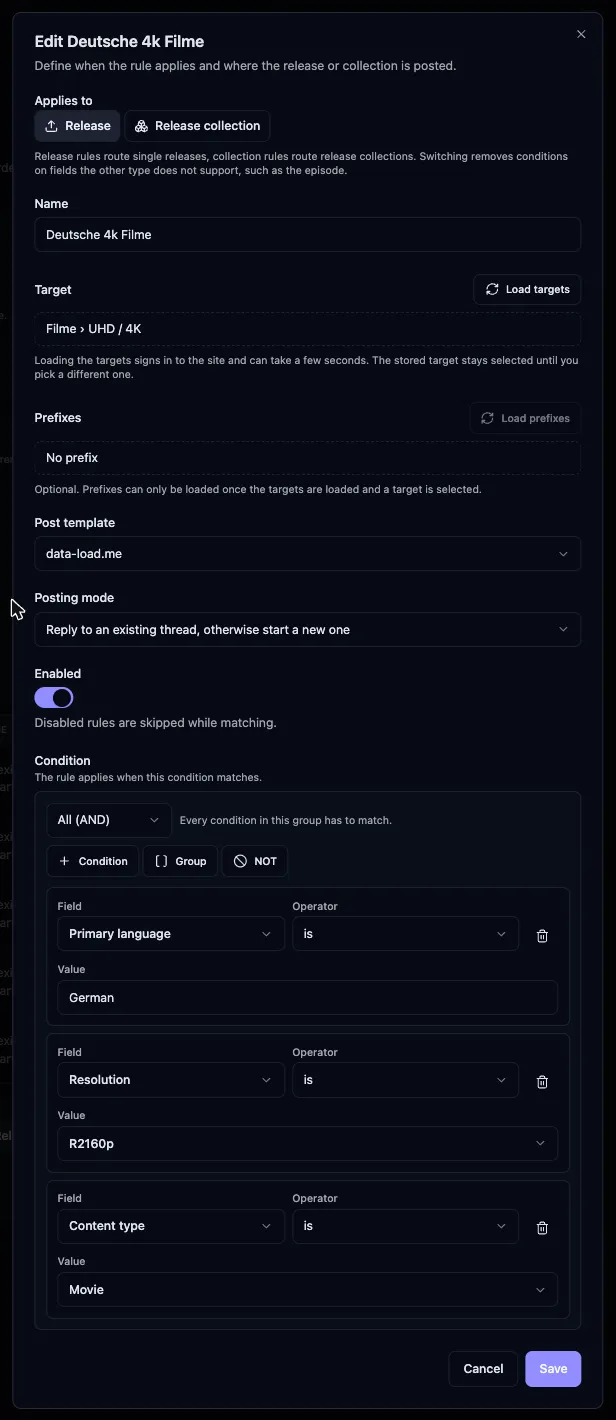
Section titled “Adding a rule”Click New posting rule and fill in these fields:
- Applies to: choose Release or Release collection at the top of the dialog. Each rule applies to one type.
- Name: your own name for that rule
- Target: a subforum or blog category. Click Load targets and select one. Loading can take a few seconds.
- Prefixes: forums only. Some subforums allow you to set prefixes on new threads
- Post template: the template for the post body. Release rules use release templates; collection rules use release collection templates. The template determines the rule type. Only templates in the matching output format are available: BBCode for forums, HTML for WordPress.
- Posting mode: forums only. Either Reply to an existing thread, otherwise start a new one, or Always start a new thread. Blogs always get a new post.
- Enabled: disabled rules are skipped while matching
Conditions
Section titled “Conditions”Conditions define which releases or collections a rule applies to. Collection rules use the same fields except Episode. Switching a rule to Release collection removes Episode conditions. You can group comparisons:
- All (AND): every entry in the group has to match.
- Any (OR): at least one entry has to match.
- NOT: matches when the single condition inside does not match.
Groups can be nested, so you can build something like “German and (1080p or 2160p) and not from group X”. Use Condition, Group and NOT inside a group to add entries.
Each comparison row picks a field, an operator and a value:
| Field | Values |
|---|---|
| Release name | Release or collection name, free text |
| Resolution | From the classification, for example R1080p or R2160p |
| Primary language | Language of the release or collection, for example German |
| Multi-language | Yes or no |
| Content type | Movie, TvShowEpisode or Other |
| Source | For example BluRay or WebDl |
| Platform | From the classification |
| Release group | The Bearcat release group the release or collection belongs to |
| Release group tag | The group tag from the release name, for example FLAME |
| Year | Number |
| Season | Number |
| Episode | Number, releases only |
| Genre | Genres from the media database, comma-separated, for example Animation, Family |
The available operators depend on the field:
| Field | Operators |
|---|---|
| Release name | is, is not, pattern matching and matches regex |
| Release group, release group tag, genre | is, is not, pattern matching, is one of, is none of, is set, is not set |
| Primary language | is, is not, is one of, is none of, is set, is not set |
| Resolution, year, season, episode | Include is at least and is at most |
With matches pattern (%), % stands for any text. The pattern must match the whole value:
%German%matches names containingGerman.%-FLAMEmatches names ending in-FLAME.%Animation%on the genre matches every release that hasAnimationamong its genres.
Patterns and regular expressions ignore case. An invalid regular expression or a match that times out is treated as no match.
Most fields come from the classification, based on the release name and available media info. Release rules require a release classification.
For collections, the name, content type, release group and language come from the collection itself. If language or content type is not set, Bearcat falls back to the member releases. Resolution, source, platform, year, season, multi-language and release group tag come from the classifications of the releases in the collection. Bearcat uses a value only when it is the same across all classified releases. Otherwise, it is unknown or not set. Releases without a classification do not count into these values. The genre comes from the media data of the member releases and is used only when it is the same across all releases that have one.
Ordering the rules
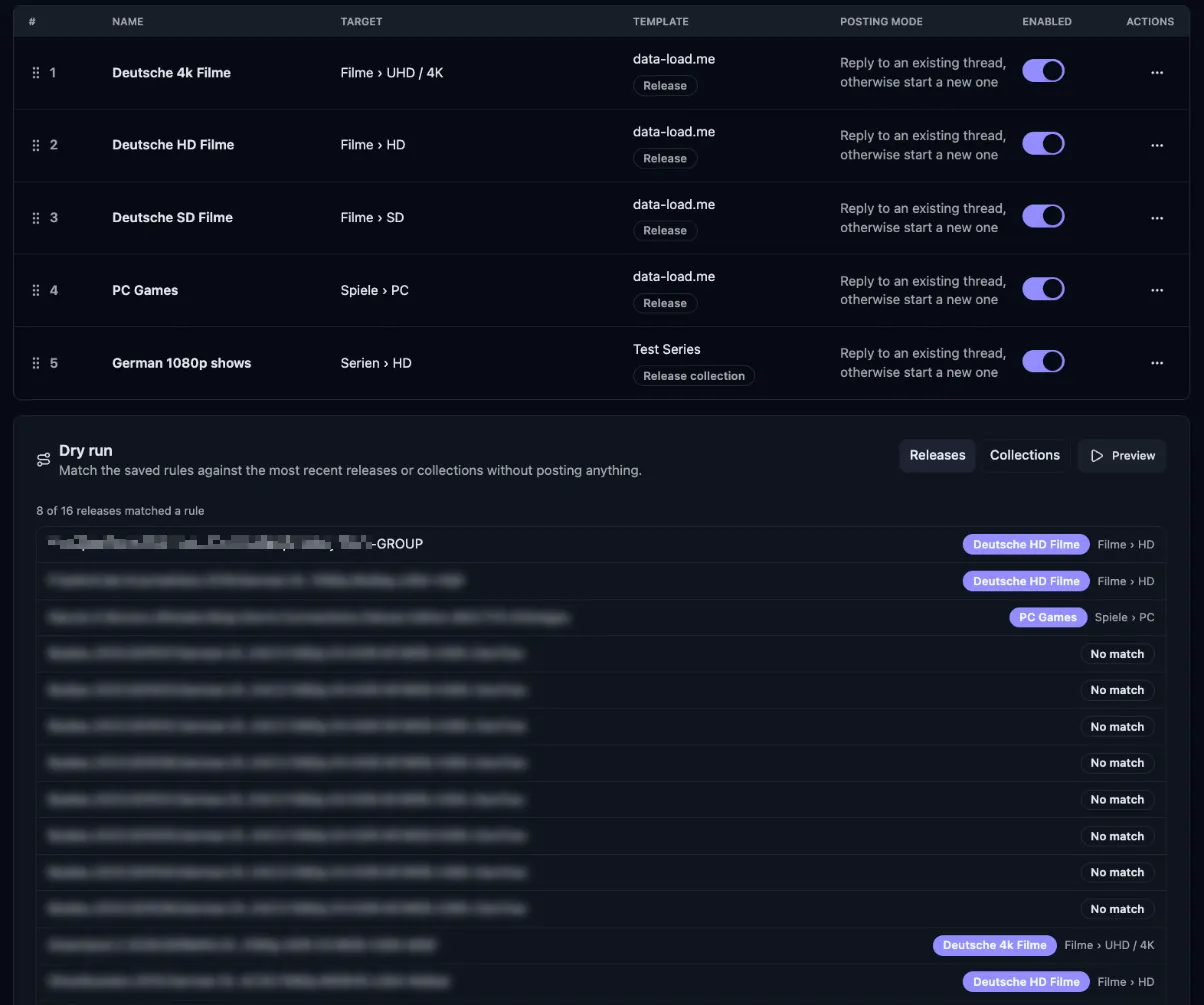
Section titled “Ordering the rules”Bearcat uses the first matching rule for the relevant type: release or collection. Both rule types appear in the same list. A badge under the template name shows the type. Drag rules by the handle on the left to reorder them. Put specific rules before general ones.
Dry run
Section titled “Dry run”Save your rules. Under Dry run at the bottom of the page, select Releases or Collections and click Preview. The preview shows the matching rule and target, or No match, for recent entries. It does not post anything.
Run a preview after changing conditions or rule order, before enabling automatic posting.
Posting from the post queue
Section titled “Posting from the post queue”Every entry under Single releases and Collections in the post queue has an Automatic posting section that shows, per site, what the rules would do:
- the matched rule and its target, with a Post button,
- Posted with a link, if the release or collection was already posted to that site,
- No matching posting rule, if no rule matches the release or collection.
The Auto badge shows that Bearcat posts to this site automatically.
Click Post to publish the post. On forums, Bearcat creates a reply or new thread, depending on the rule. On blogs, it creates a new post. Bearcat saves the post URL under Posted locations. Post to all matched sites posts to the remaining matching sites one after another.
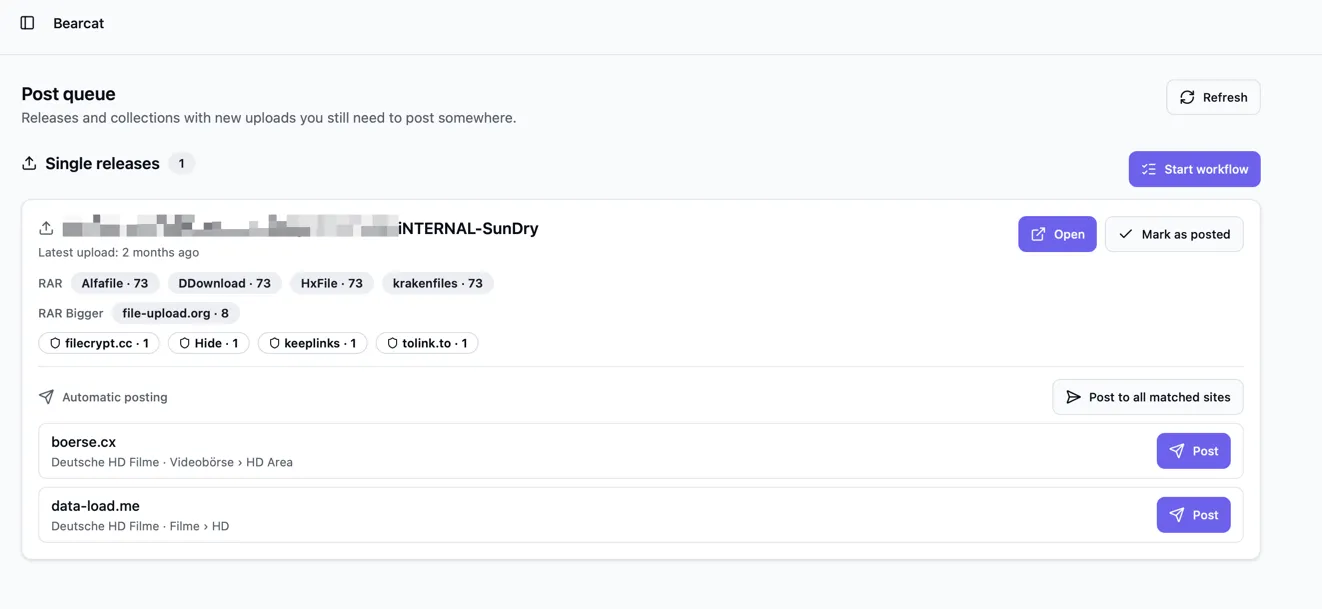
Once Bearcat has posted to all matching sites, it marks the release or collection as posted and removes it from the queue. If you post manually, use Mark as posted.
The same Automatic posting section appears in the overview of a release or collection, above Posted locations. Use it for releases and collections that are no longer in the queue, for example to post to a site you added later.
When a release or collection cannot be posted
Section titled “When a release or collection cannot be posted”Instead of the site list, the entry shows a short reason:
- Automatic posting is blocked: the quality gate has not passed. The release must pass its quality checks or be manually approved. Bearcat checks unevaluated releases on the next background run.
- Automatic posting is blocked: the release has no classification. Bearcat classifies releases every 30 minutes and after extracting media data. Wait for the next run or click Extract media data on the release.
- Automatic posting is blocked: not every release in this collection has passed the quality gate. Every member release must pass or be manually approved.
- Automatic posting is blocked: no release in this collection has a classification. At least one member release must be classified.
- No distribution site has posting rules yet. No site has an enabled rule.
The background task retries blocked releases and collections once they meet these requirements.
Updating a post after a reupload
Section titled “Updating a post after a reupload”After a reupload, Bearcat can update existing posts with the new download links. This also applies when you upload a new episode to a collection. Bearcat updates the existing post instead of adding a new reply. It fills the template with the current data and replaces the entire post, including any edits you made on the site. Use this for posts with direct download links instead of a link crypter container.
Updating from the queue
Section titled “Updating from the queue”A reupload or a newly uploaded episode puts the release or collection back in the post queue. Previously used sites show Post content is outdated next to the stored link. Click Update post to replace the post. The template and update time are saved with the URL under Posted locations.
For sites with Automatic posting enabled, the background task updates posts automatically if a template is available. The release or collection leaves the queue once all posts and updates are complete.
Choosing a template
Section titled “Choosing a template”Bearcat uses the first available template in this order:
- The template you pick in the dialog.
- The template the post was created with.
- The template of the rule that currently matches the release or collection.
Older posts may have no stored template. Choose one in the dialog or make sure a posting rule matches.
Updating from posted locations
Section titled “Updating from posted locations”You can also update a post from Posted locations on a release or collection. Click the update button and confirm the replacement. The entry must be linked to a distribution site; posts you confirmed by hand also qualify.
Finding an existing thread
Section titled “Finding an existing thread”On forums, Reply to an existing thread, otherwise start a new one mode searches the subforum and compares thread titles with the release or collection name. It ignores thread prefixes, case and punctuation.
- Threads with an exactly matching title take priority.
- If there is no exact match, Bearcat looks for titles containing all words of the name in the same order.
- No match: Bearcat starts a new thread. One match: Bearcat replies to it.
- Several matches: Bearcat waits for your choice and notifies you once. Click Post in the Automatic posting section. Choose an existing thread or start a new one.
Failed automatic posts
Section titled “Failed automatic posts”When an automatic post or update fails, Bearcat waits before trying again. The delay applies only to this release or collection on the affected site:
| Failed attempts | Wait before the next attempt |
|---|---|
| 1 | 15 minutes |
| 2 | 1 hour |
| 3 | 4 hours |
| 4 | 12 hours |
| 5 | No further automatic attempts |
Bearcat counts failed posts and updates together. The Automatic posting section shows the last error and whether Bearcat is waiting to retry or has stopped automatic posting.
Click Post or Update post to try again immediately. A successful manual attempt resets the counter. A failed manual attempt leaves it unchanged.
Notifications
Section titled “Notifications”Bearcat notifies you after successful posts and updates. For failed automatic attempts, you receive a notification only after the fifth failure. Earlier failures only appear in the log. Bearcat also notifies you once when you need to choose between several matching threads.
You can disable notifications for posts and updates separately. Posts skipped because of the hoster rules do not trigger a notification.
Posted locations and duplicates
Section titled “Posted locations and duplicates”Bearcat records each site in Posted locations and shows Posted instead of offering to post again. The background task only updates outdated posts on those sites. Changing the rules does not trigger a new post.