
Post Templates
Write your post with placeholders for the release name, NFO, links, and images. Bearcat fills them with data from a release or collection.
You can copy the result by hand or let posting rules post it for you.
Create a template
Section titled “Create a template”-
Open Release settings > Post templates and click + next to the search field.
-
Choose the type: Release or Release collection. You can’t change it later.
-
Choose the output format:
Output format Use BBCode Forums HTML WordPress Plain text Copying text without formatting When posting to a distribution site, only templates in the matching format are available: BBCode for forums, HTML for WordPress.
-
Enter a name, write the template and press Ctrl+S (⌘S on a Mac) to save.
Use the editor
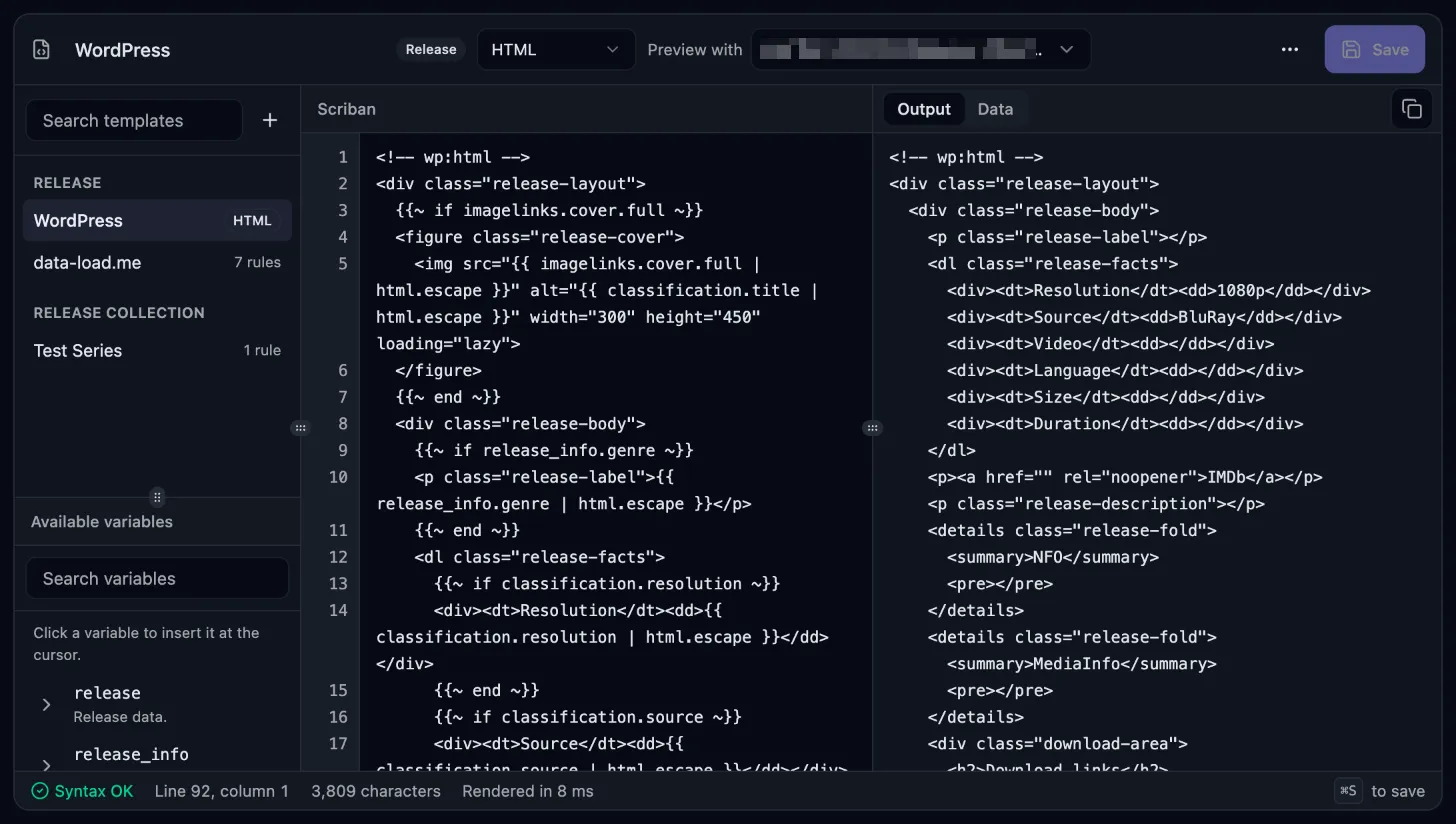
Section titled “Use the editor”The editor has three parts: your templates and variables on the left, the template in the middle and a live preview on the right.
-
Insert variables: click a variable under Available variables to insert it at the cursor. Lists like
uploadsinsert a complete loop. Use the search field to find a variable.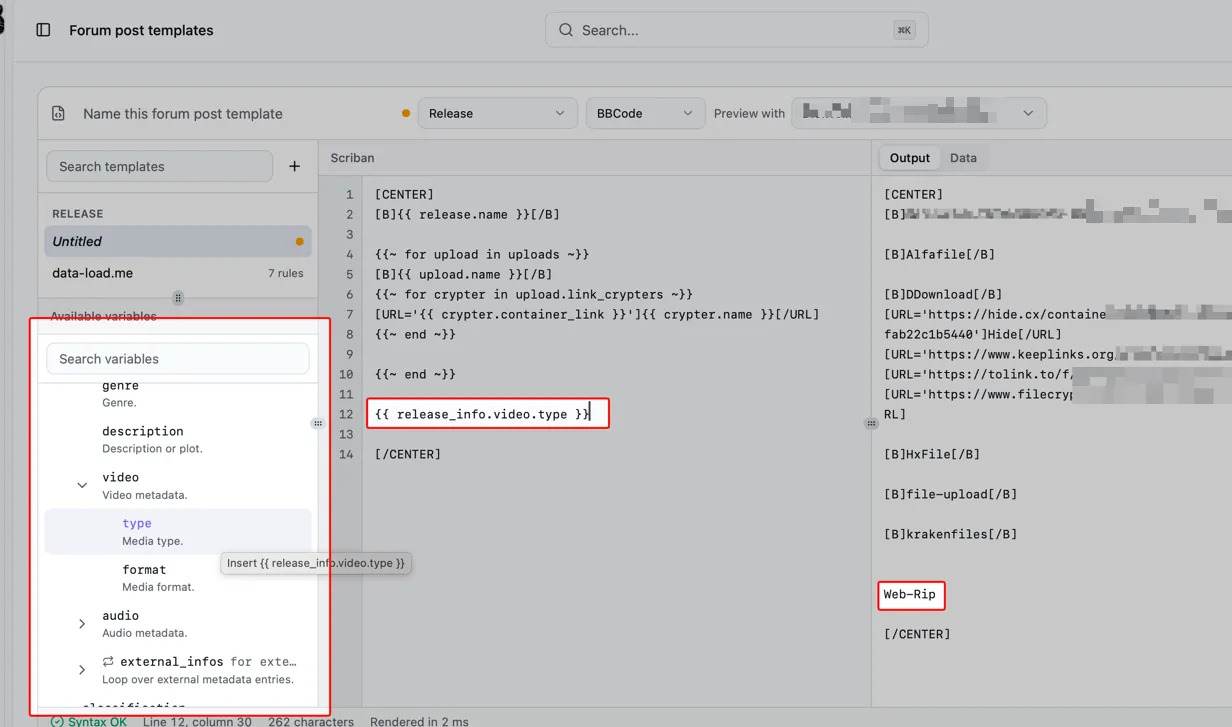
-
Preview: choose a release under Preview with. The preview updates while you type. Output shows the finished post, Data shows all values of that release.
-
Errors: the status bar shows syntax errors. Click them to jump to the line.
If a placeholder stays empty in the preview, check the Data tab. It shows what the release actually has.
Template syntax
Section titled “Template syntax”Templates use Scriban.
Print a value:
Loop through a list:
Use ~ to remove the whitespace around for and end from the output.
For values within a line, use {{ }} without ~.
Show a section only if a value exists:
A complete example with NFO and link crypter links:
In collection templates, loop over the releases with {{~ for release in releases ~}}.
Use release.name, release.nfo and the other release fields just as you would in release templates.
The remaining release data is also under release: release.release_info, release.classification,
release.uploads, release.link_crypters and release.imagelinks.
imagelinks without release. contains the collection’s image links.
collection.main_video_total_size_bytes is the sum of release.main_video.size_bytes over all releases.
collection.imdb_id, collection.tmdb_id and collection.tvdb_id contain the series IDs from the
releases. Manual IDs take priority. The matching _url variables contain the links.
Loop over upload_slots to access the collection’s upload slots.
upload_slot.name and upload_slot.key give you each slot’s name and key.
Use upload_slot.link_crypters to access its containers. They contain the links of all releases
in that slot.
One link for all hosters
Section titled “One link for all hosters”Use link_crypters to access the containers for Release (all hosters as mirrors).
The list contains one container per link crypter, with the same fields as upload.link_crypters.
Each upload included in a shared container also lists it in upload.link_crypters.
Video uploads
Section titled “Video uploads”For video uploads, you can use two more variables inside the
{{~ for upload in uploads ~}} loop:
upload.is_video_upload:truefor a video upload.upload.embed_links: a list of embed links in the same order asupload.links. It contains one entry for video uploads and is empty for archive uploads.
For video uploads, upload.archive_format and upload.archive_password are empty.
Screenshots
Section titled “Screenshots”Access uploaded screenshots like cover links:
use imagelinks in release templates and release.imagelinks in collection templates.
Each image upload configuration has these fields:
imagelinks.<name>.screenshots: the uploaded screenshots, sorted by number. Each entry contains the image linksfull,mediumandthumbnailin the sizes the image hoster provides.indexis the number starting at 1, andtimestampis the video position ashh:mm:ss. The list stays empty until the first screenshot is uploaded.imagelinks.<name>.screenshotgrid: the screenshot grid withfull,mediumandthumbnail. The field stays empty until the grid is uploaded.
Render a post
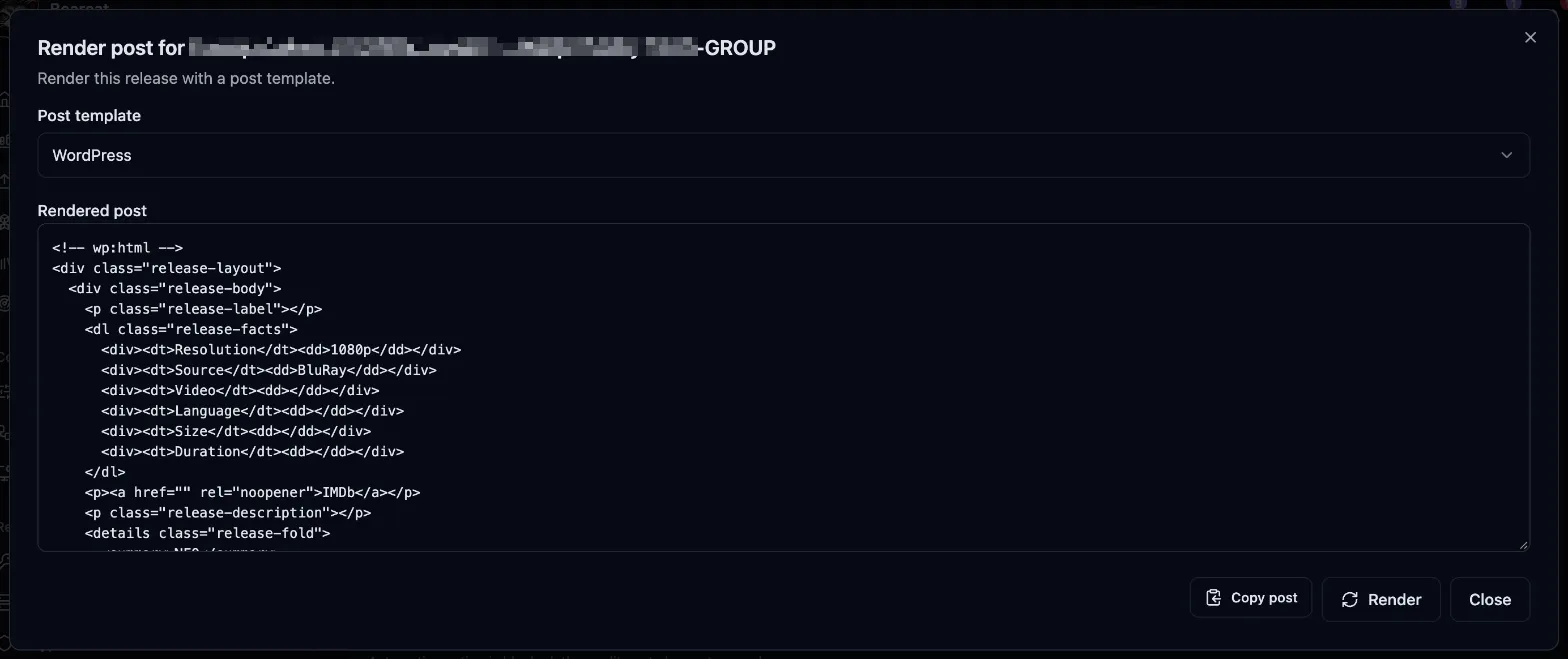
Section titled “Render a post”Open a release or release collection and click Render post in the arrow menu of Post to site. Without an active distribution site, it is a separate button. Choose a template and click Copy post, then paste the result into your forum or blog.
Good to know
Section titled “Good to know”- Empty values: missing data leaves placeholders empty. Wait for uploads and link crypter containers to finish before rendering, so the post includes all links.
- Image links: use
{{ imagelinks.imgbb_cover.full }}for an image upload configuration namedImgBB Cover. Bearcat converts the name to lowercase and replaces spaces with_. Alternatively, use the original name:{{ imagelinks["ImgBB Cover"].full }}. The link appears once the image is uploaded. - Media data:
release.main_videoandrelease.media_filescome from the video files of managed releases. Bearcat reads them automatically for releases created from a release template. For other releases, open Release info and choose Extract media data from the...menu. - Upload names: name your upload configurations the way they should appear in the post, for
example
Rapidgator. Then you can use{{ upload.name }}directly. - Hoster names:
upload.hoster_nameshows the hoster name of the latest upload, for exampleRapidgator.upload.hoster_registration_nameshows the account name and stays empty until an account is assigned. - Several forums: BBCode support varies between forums. Use one template per forum if needed.
- HTML templates: Bearcat sends the rendered HTML unchanged. Escape values with
| html.escape. See WordPress for a block editor example.