
Release Templates and Folder Automations
Save your first upload settings as a template. Use it to create more releases manually or automatically from new folders.
Setting up release templates
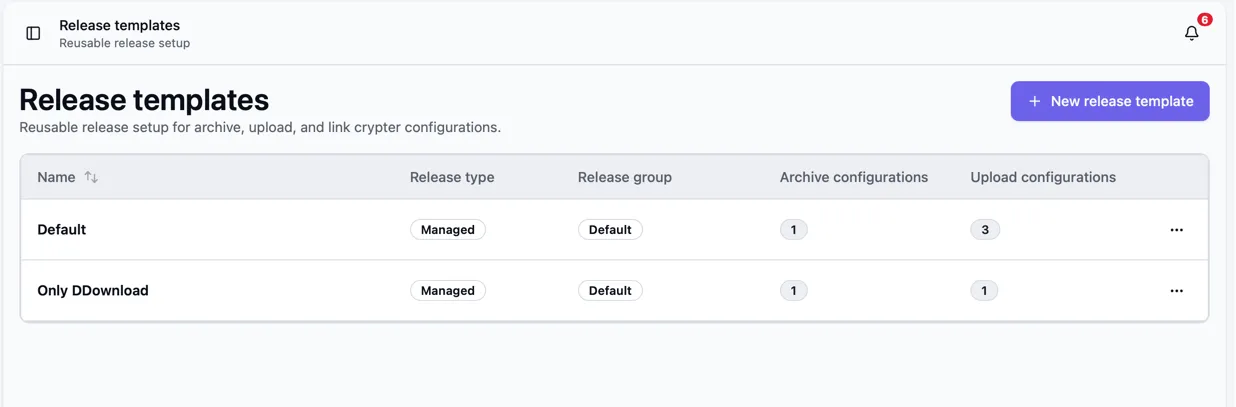
Section titled “Setting up release templates”A release template stores the release group and settings for archives, uploads, images, and link crypters for new releases. You can create one in three ways:
- Open Release settings > Release templates, click New release template, and add the configurations.
- Open a configured release and choose Save as template from its action menu.
- Choose Duplicate from the action menu of a template to create a variant of it.
Use Create container for in the link crypter configuration to give each hoster its own container or group all hosters of a release as mirrors in one container. See link crypter containers.
On Releases, choose New from template. The new release normally takes the folder name, as do archive configurations set to use the release name.
Enable One release per subfolder to create a release for every direct subfolder of the selected folder. Deselect the subfolders you do not want. Subfolders already in use cannot be selected.
Enable Collection detection in the template to group related releases, such as episodes of a TV season. See Release Collections.
Screenshots
Section titled “Screenshots”Under Screenshots in the template and release settings, you can enable two options:
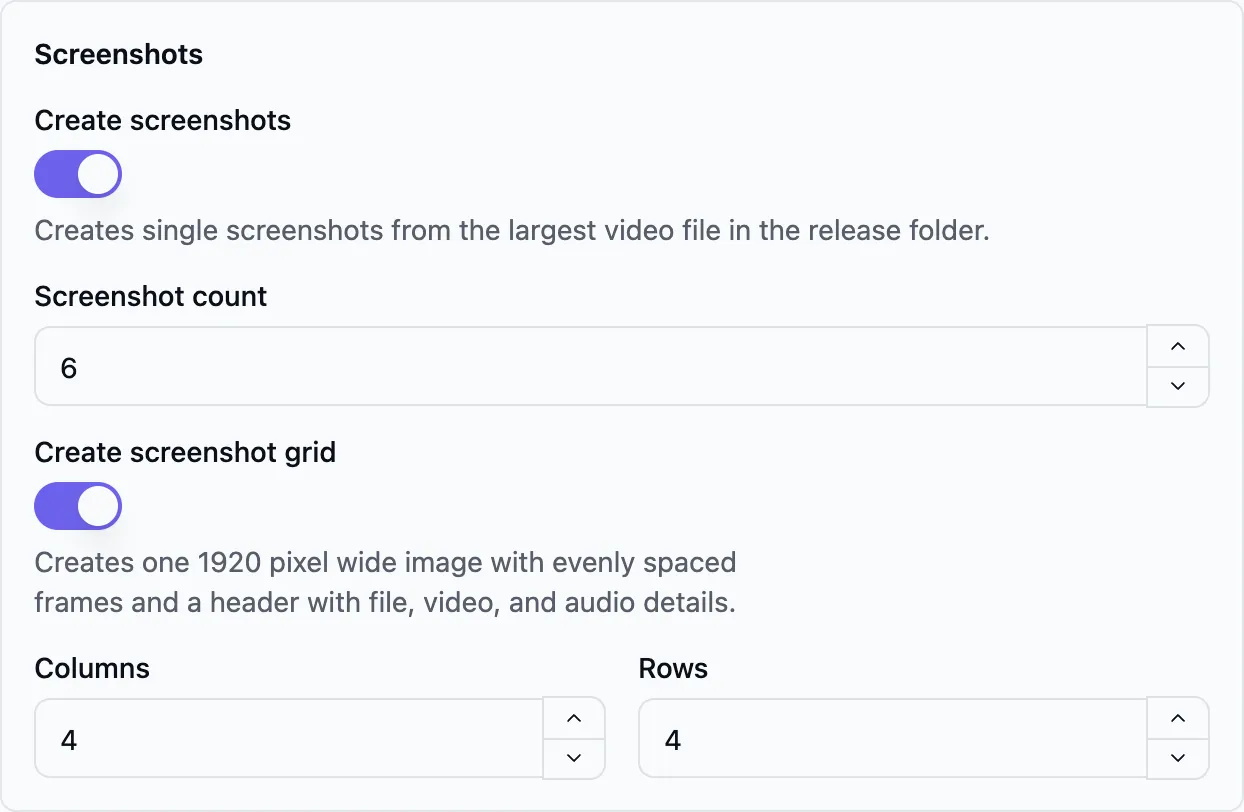
| Option | Default | Result |
|---|---|---|
| Create screenshots | Off, 6 screenshots | 1 to 20 individual screenshots at even intervals. |
| Create screenshot grid | Off, 4 columns × 4 rows | An image 1920 pixels wide with up to 8 columns and 10 rows. The header contains file, video, and audio details. |
- Screenshots can only be created for managed releases whose release folder still exists.
- Bearcat uses the largest video file in the release folder.
- HDR10 and HLG videos are tonemapped to SDR. Dolby Vision without an HDR10 or HLG base layer is not supported.
- The Screenshot creation background task creates the images. ffmpeg is downloaded on demand.
- Bearcat only creates images configured for upload. Enable Screenshots or Screenshot grid in an image upload configuration with an active image hoster.
The Images tab shows the result or an error message. Use Regenerate to replace the screenshots and their image uploads, for example after changing the settings. The release must still be managed, and its release folder must exist.
You can use the uploaded images in post templates. Bearcat deletes the local screenshot files once every image upload configuration set up for them has uploaded them. If no upload is configured for them any more, it deletes them immediately. The Images tab then shows the images from the image hoster.
Setting up folder automations
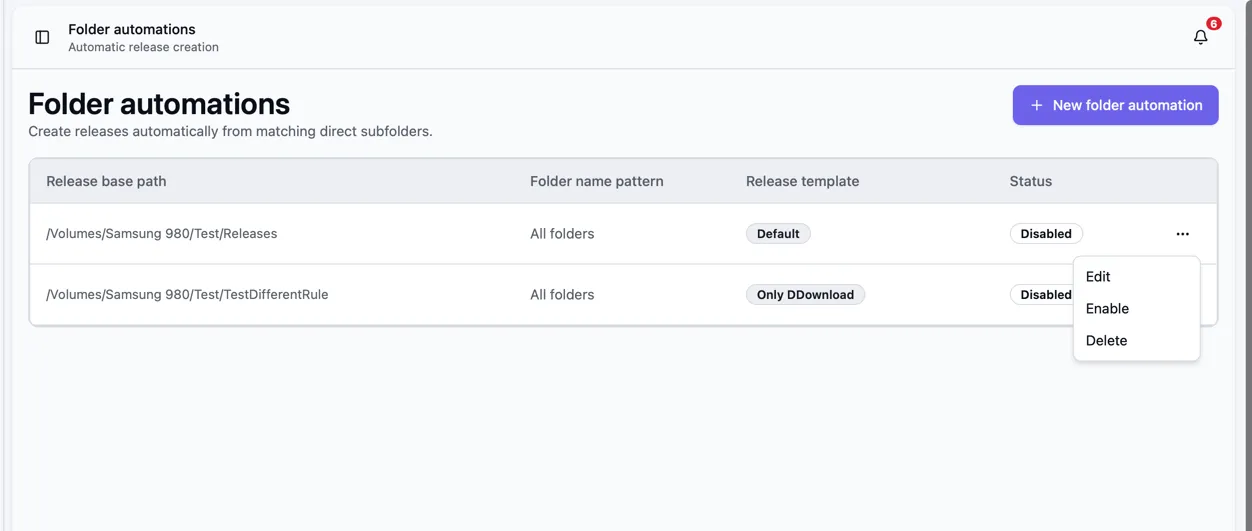
Section titled “Setting up folder automations”- Create a release template, then open Automation > Folder automations and click New folder automation.
- Set Release base path to the folder Bearcat should scan. Only direct subfolders are checked.
- Optionally set a Folder name pattern, such as
*1080p*or*.GERMAN.*. Matching ignores case and supports wildcards, but not regular expressions. Leave it empty to include all direct subfolders. - Leave Ignore existing folders on to process only new folders. Turn it off to import existing folders. See Existing folders.
- Select the template and optionally a primary language for translated metadata. An empty language uses the metadata provider’s default.
- Save with Enabled checked. You can disable or re-enable the automation from its action menu.
For this base folder:
The pattern *1080p* selects only Movie.One.2026.1080p. An empty pattern includes all three folders.
Bearcat scans about every two minutes and skips folders that already have a release. Once a folder meets the stability and minimum size requirements, Bearcat creates the release, looks up its metadata, and packs and uploads it using the template.
Existing folders
Section titled “Existing folders”Ignore existing folders is on by default. On its first scan, Bearcat records all matching folders and permanently ignores them for this automation. Only new folders become releases. Turn the option off to also import existing folders that do not have a release yet.
If you change Release base path or Folder name pattern, this setting applies again to the folders Bearcat finds with the new settings.
The Folder preview lists folders that match the base path and pattern. Folders with a release and archive output folders are marked Already in use.
When you create an automation or change its base path or pattern, the preview also shows what will happen to the remaining folders: Bearcat ignores them or shows a warning with the number of folders that will be imported and uploaded. Use the refresh button to reload the preview.
Extract archives before release creation
Section titled “Extract archives before release creation”For managed templates, turn on Extract archives before release creation in the folder automation if the folders contain RAR or 7z archives and you want Bearcat to pack the release itself. The option is off by default and does not apply to unmanaged templates.
Before the release is created, Bearcat checks the folder against its .sfv files, if there are any,
and extracts every RAR and 7z archive in the folder and its subfolders. After a successful extraction,
it deletes the archive volumes and .sfv files that only list those volumes. The extraction rules are
the same as for remote downloads.
Running checks and extractions appear on the Home page under Folder automations.
If verification or extraction fails, Bearcat keeps the files and creates no release. Find the error under Failed extractions on Folder automations. Fix the cause, then click Retry to process the folder on the next scan. Bearcat also retries when the folder’s files change.
Download releases from FTP or FTPS
Section titled “Download releases from FTP or FTPS”Use Remote sources and Remote automations to download new folders from a server and create releases from a template. See FTP / FTPS Downloads for setup and examples.