
IntelligeN XML export
After upload, Bearcat writes a release’s download links and metadata to an XML file for IntelligeN. For a collection, the file contains links for all episodes. Within each upload slot, Bearcat groups links from the same hoster into one mirror.
Set up the export
Section titled “Set up the export”- Open Automation > Actions after upload and click New action.
- Under Action type, choose IntelligeN XML export and give the export a name.
- Choose After the first upload, After a reupload, or both.
- Choose an existing Export folder. Use the File path template to set the filename and any subfolders.
- Click Save.
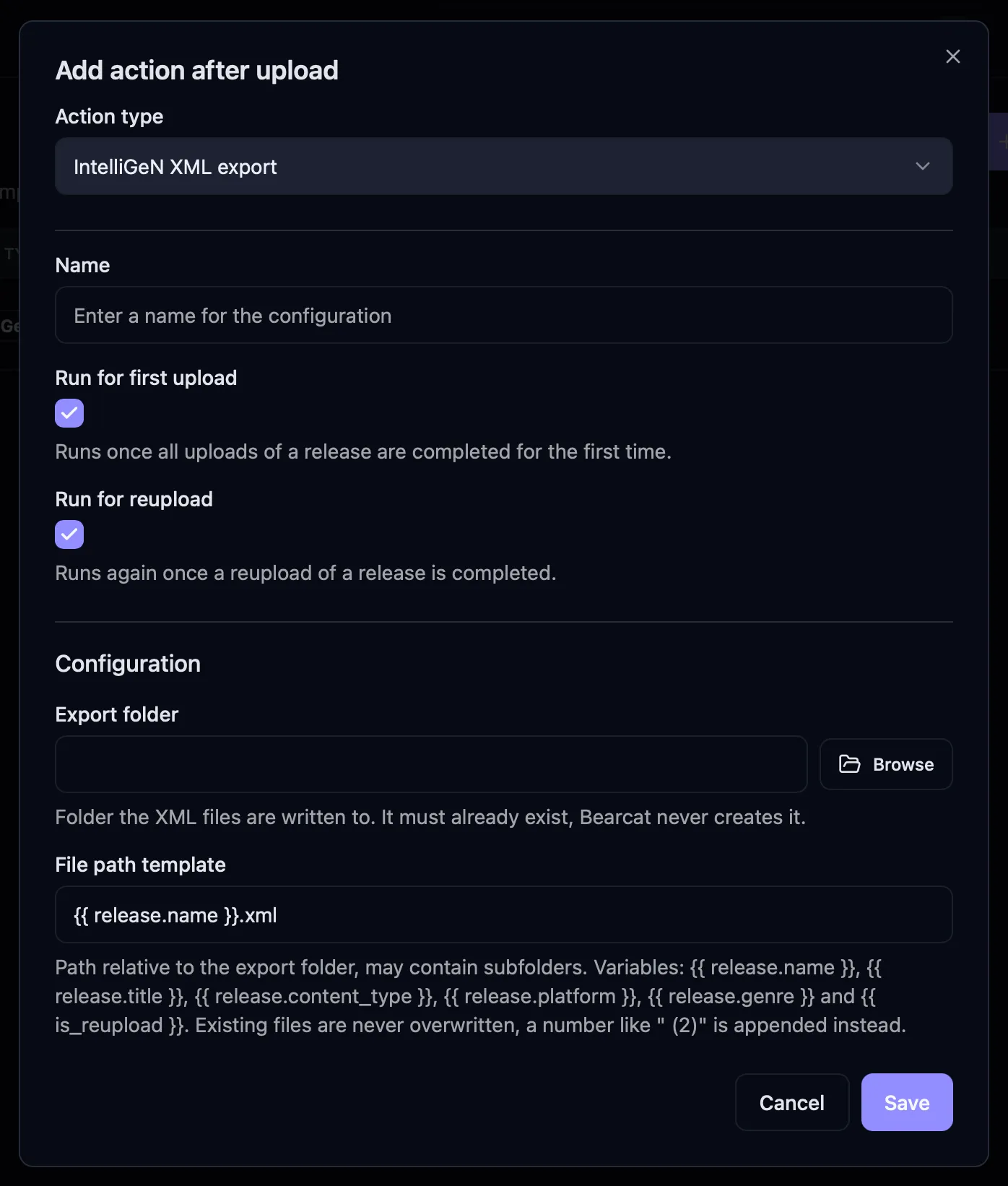
Each export creates a new file. If the filename is already in use, Bearcat adds a number, as in Release.Name (2).xml.
To check the result, open the release or collection detail page and look under Actions after upload.
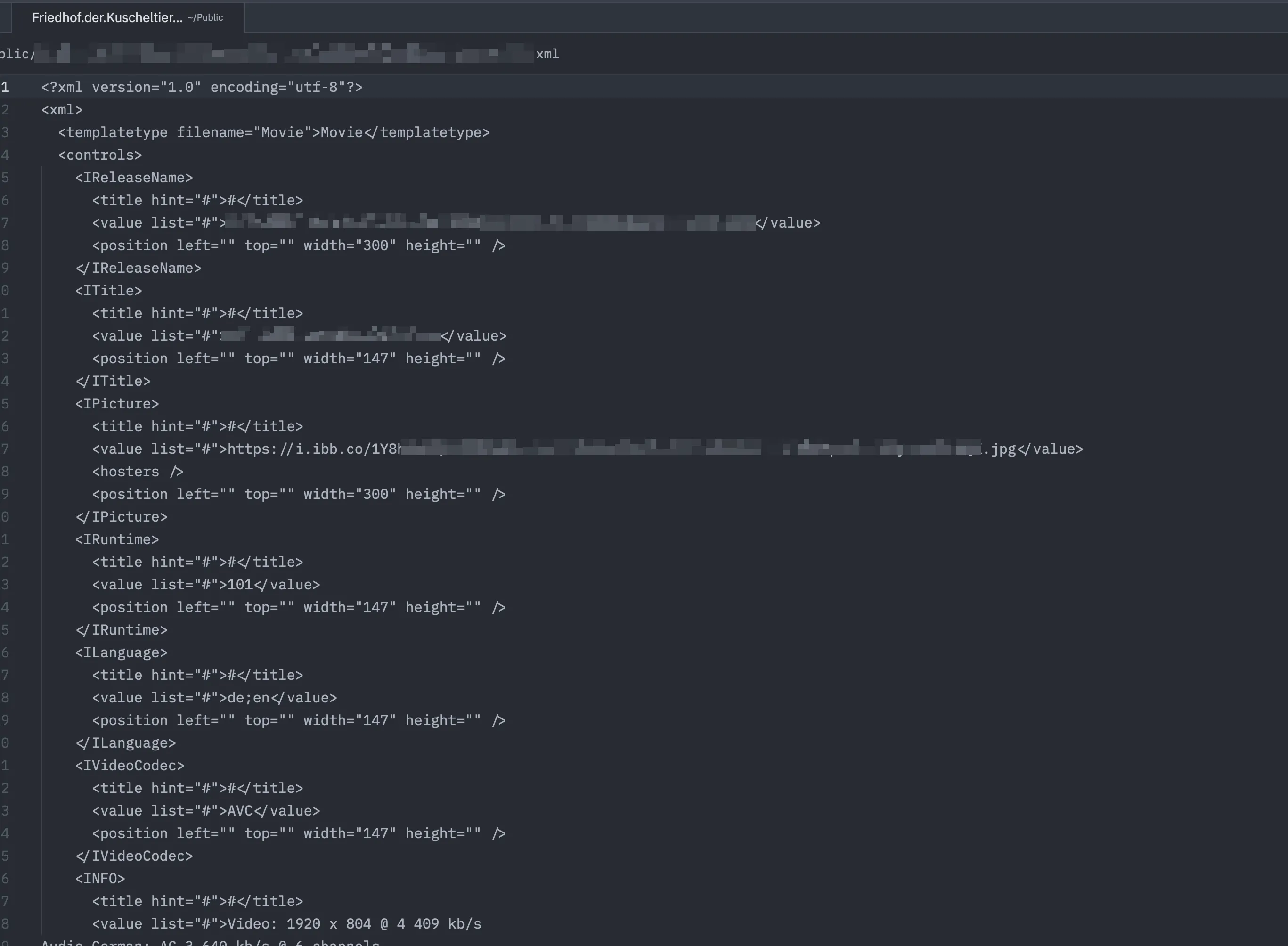
Import into IntelligeN
Section titled “Import into IntelligeN”Select the export folder in IntelligeN’s DirWatch. IntelligeN automatically imports new files from that folder.
IntelligeN only imports crypters it recognizes. For fields such as genre, language, and codecs, the value must appear in the corresponding dropdown list.
File path template
Section titled “File path template”The file path template uses Scriban. The default template, {{ release.name }}.xml, uses the release name as the filename.
| Variable | Value |
|---|---|
{{ release.name }} |
Release or collection name |
{{ release.title }} |
Title from the metadata |
{{ release.content_type }} |
Content type |
{{ release.platform }} |
Game platform |
{{ release.genre }} |
Genre |
{{ release.runtime_minutes }} |
Runtime in minutes |
{{ release.video_codec }} |
Main video codec |
{{ release.audio_codec }} |
Codec of the main audio track |
{{ is_reupload }} |
true for a reupload, otherwise false |
This template saves reuploads in the Reuploads subfolder.