The Release Detail Page
Open Releases and click a release name. For a walkthrough, see Your first upload.
Header
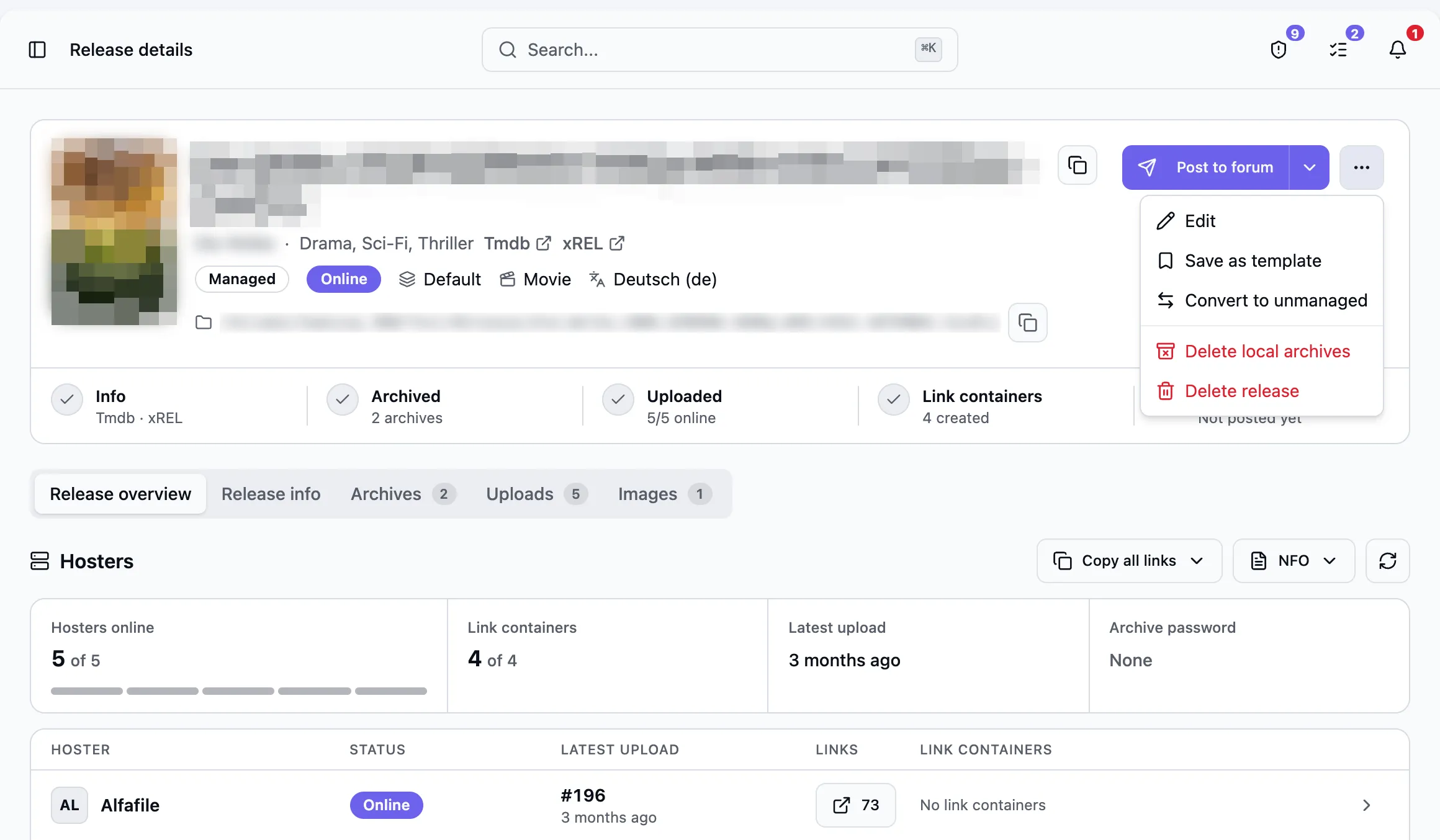
Section titled “Header”Post to site opens the posting dialog. The button is highlighted when the release has at least one online hoster and has not been posted yet. Without an active distribution site, you see Render post instead.
Click Start uploads now to skip the initial upload cooldown for this release. The button appears if at least one upload configuration has no upload yet.
Use the ... menu to convert between release types.
The status display below the header shows progress. Red marks a problem or an unfinished step. Click a step to open its tab.
Overview
Section titled “Overview”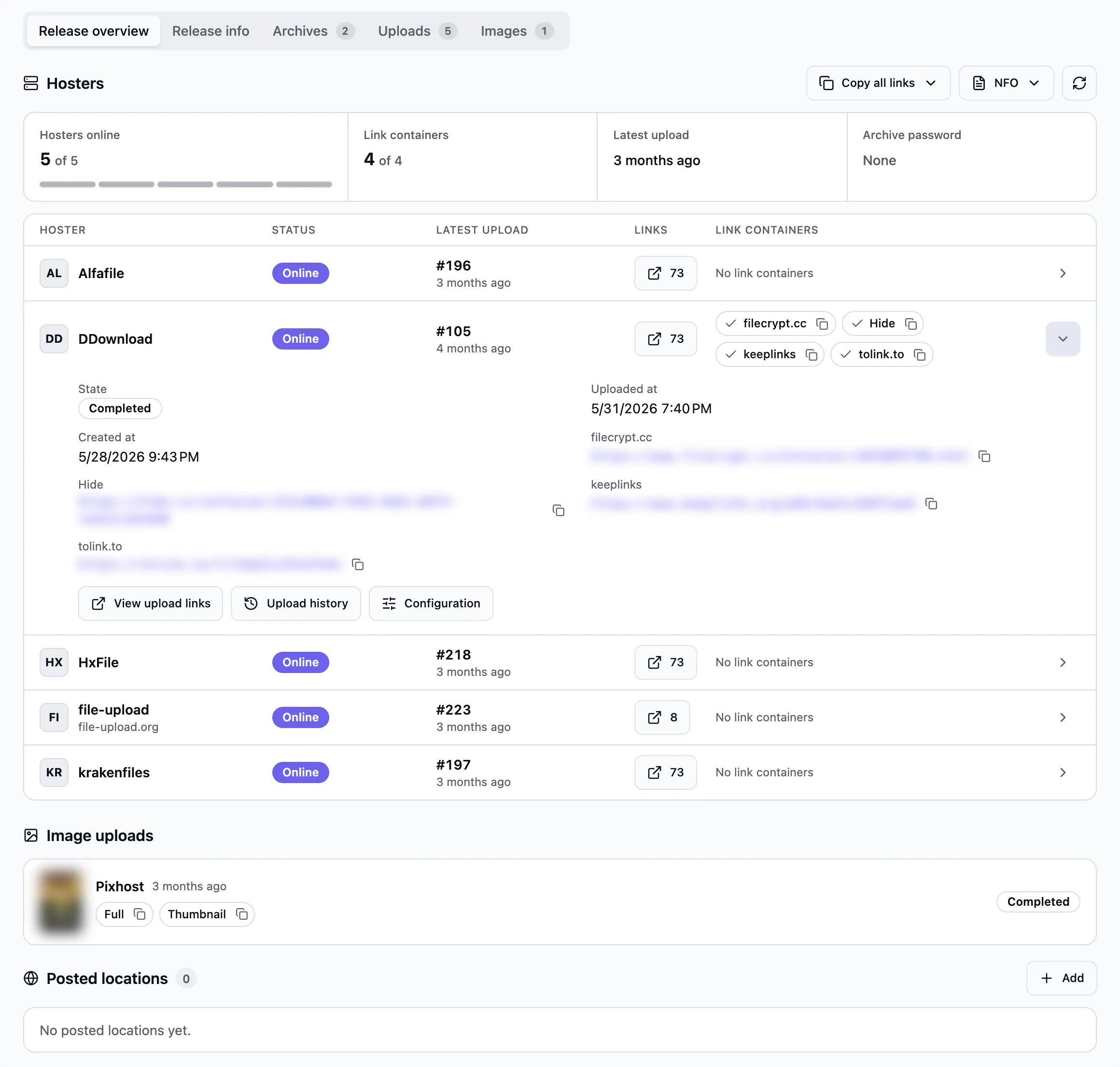
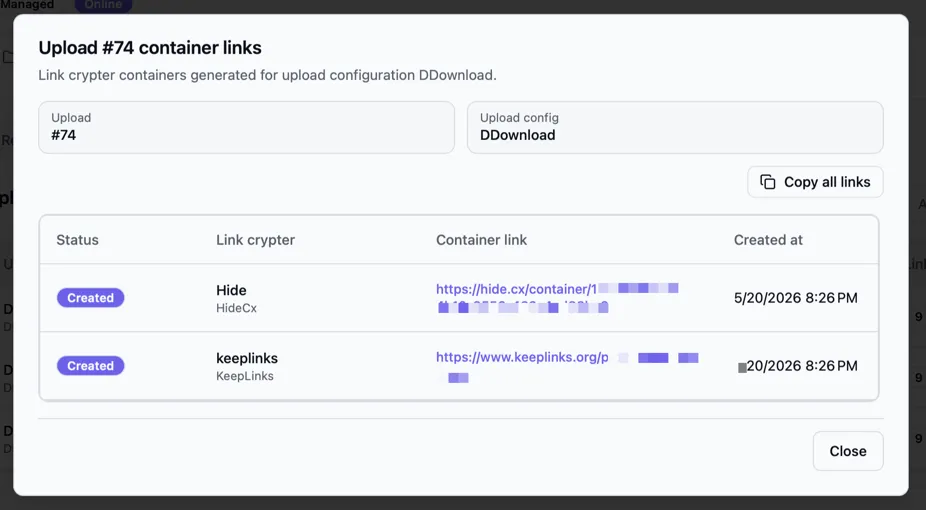
Copy all links copies one link crypter’s container links for all hosters. Posted locations are listed at the bottom.
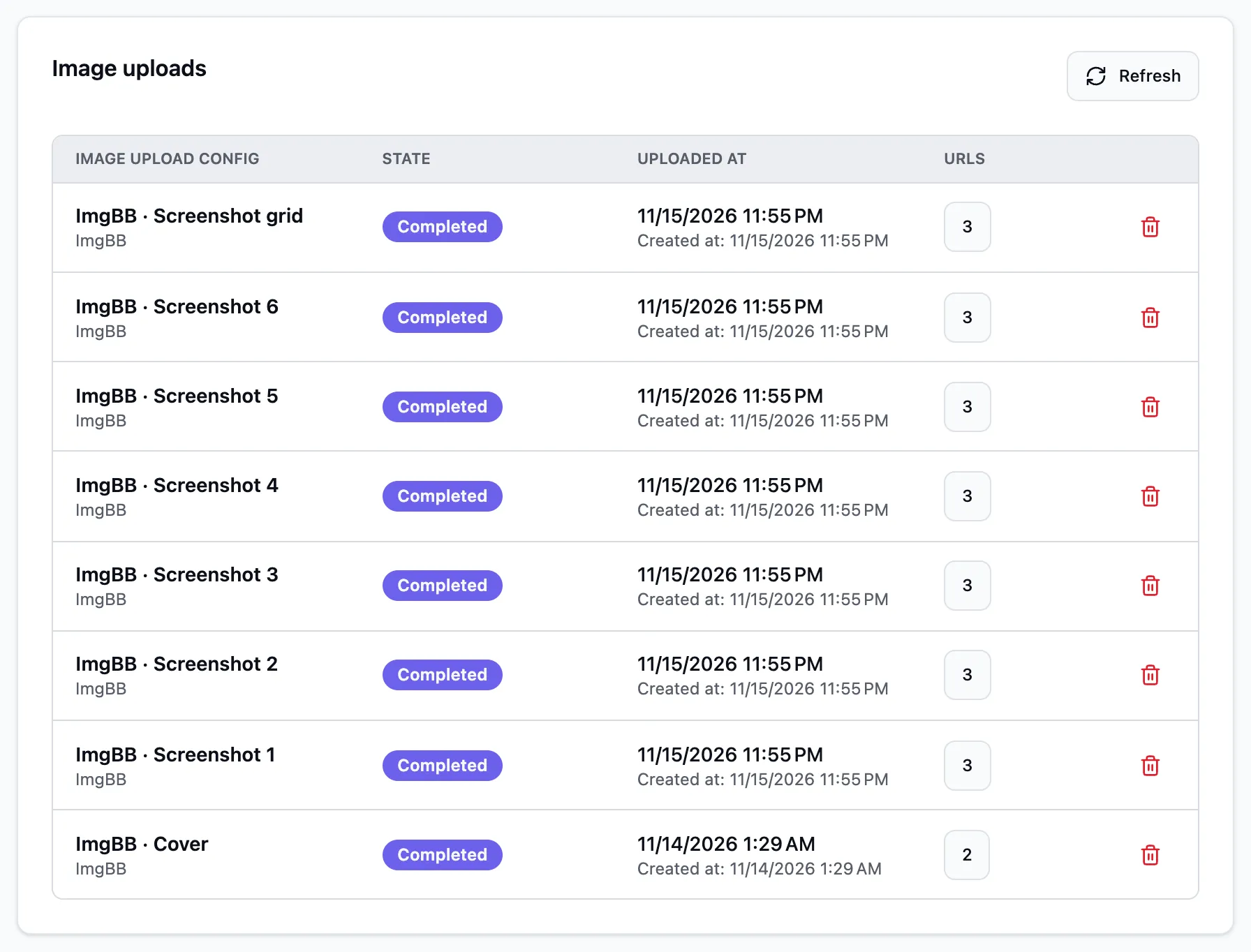
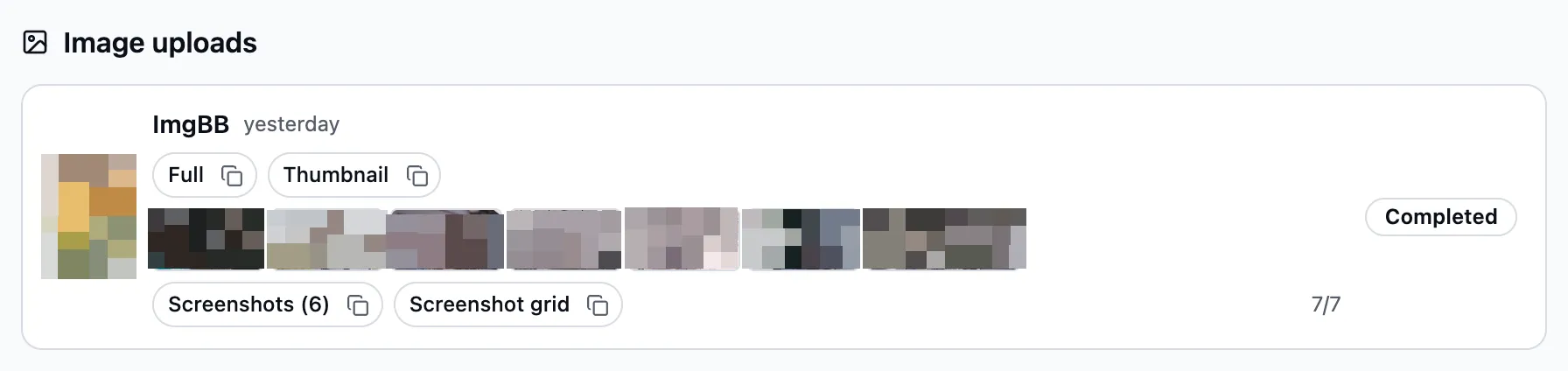
Under Image uploads, each image upload configuration shows its cover and screenshot previews. Use the copy buttons to copy the image links.
Release info
Section titled “Release info”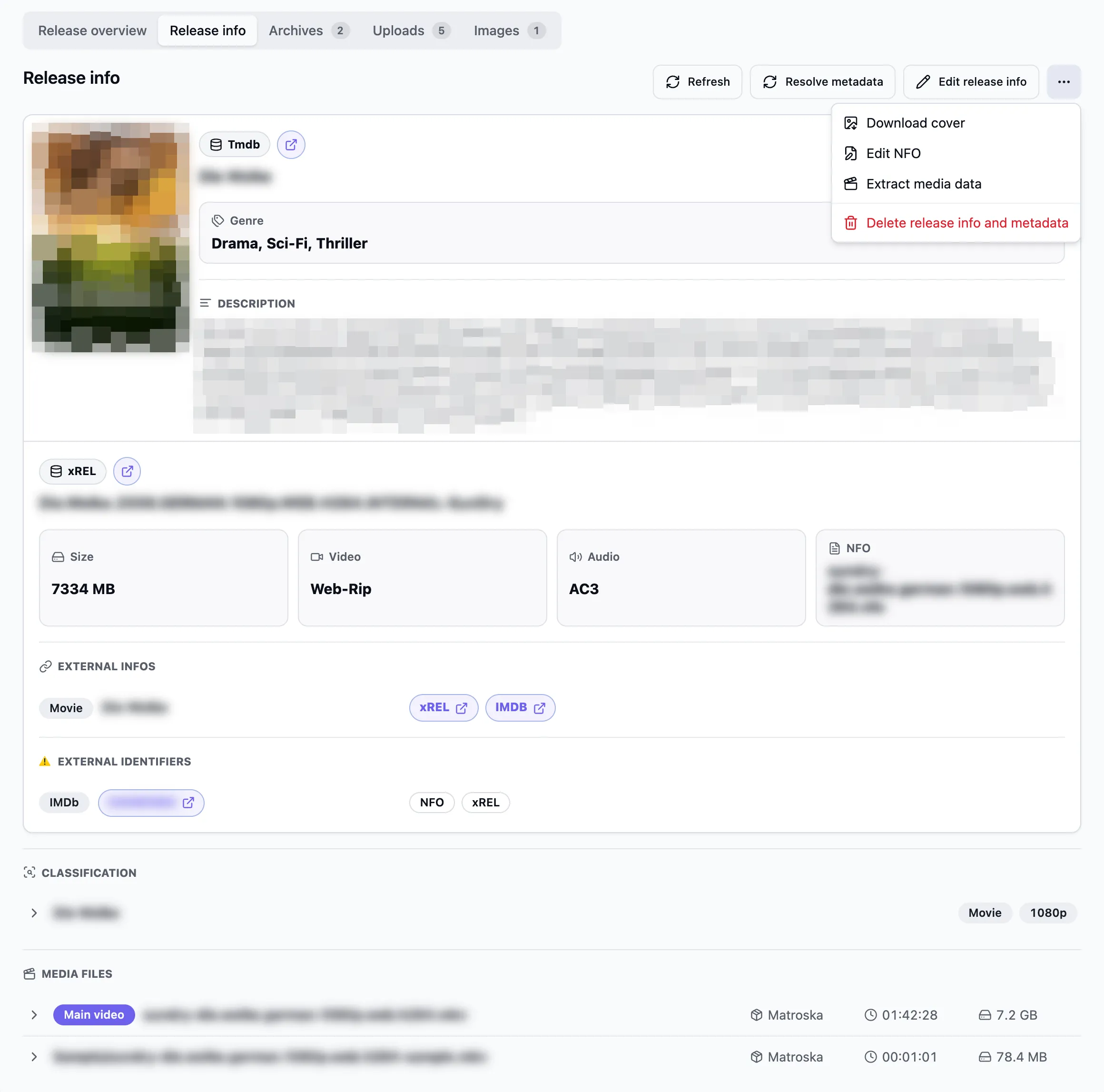
View and edit the title, description, cover, NFO, and media data here. Use Resolve metadata to search the configured providers again. See Release Information and Metadata to set up sources or correct a wrong match.
Archives
Section titled “Archives”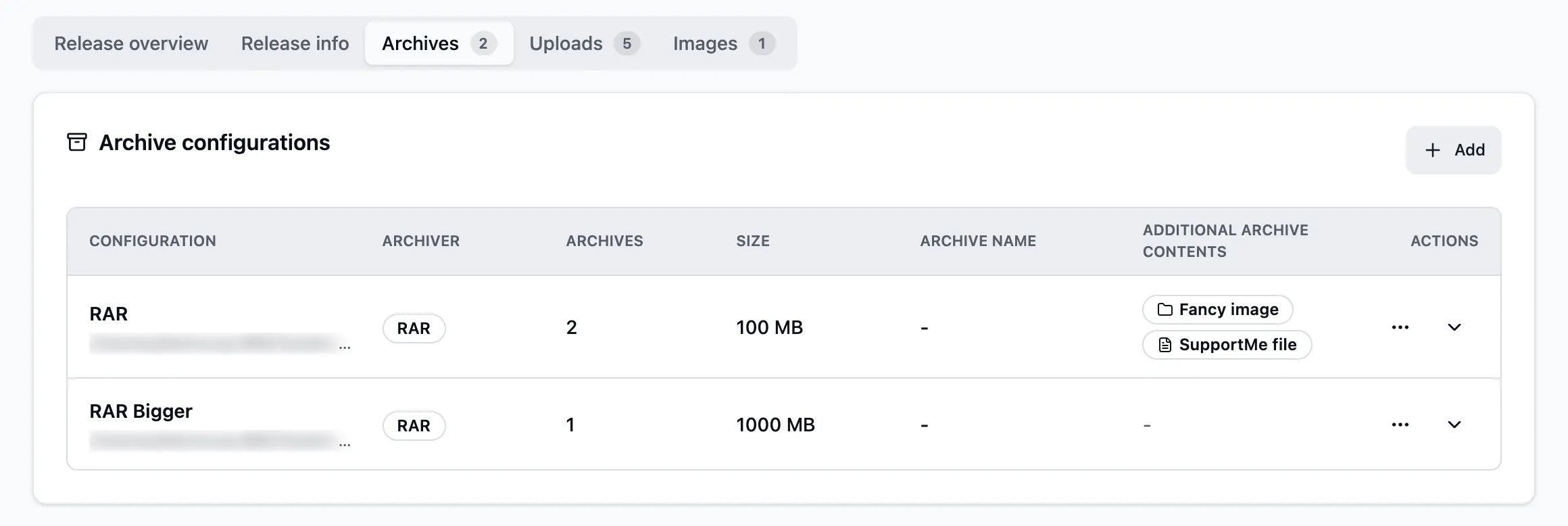
To upload a managed release as an archive, add an archive configuration here. See Creating the archive for the packing options.
Archives in a storage folder show the storage folder name next to their state. While a reupload uses a local working copy, the name is followed by local working copy.
Uploads
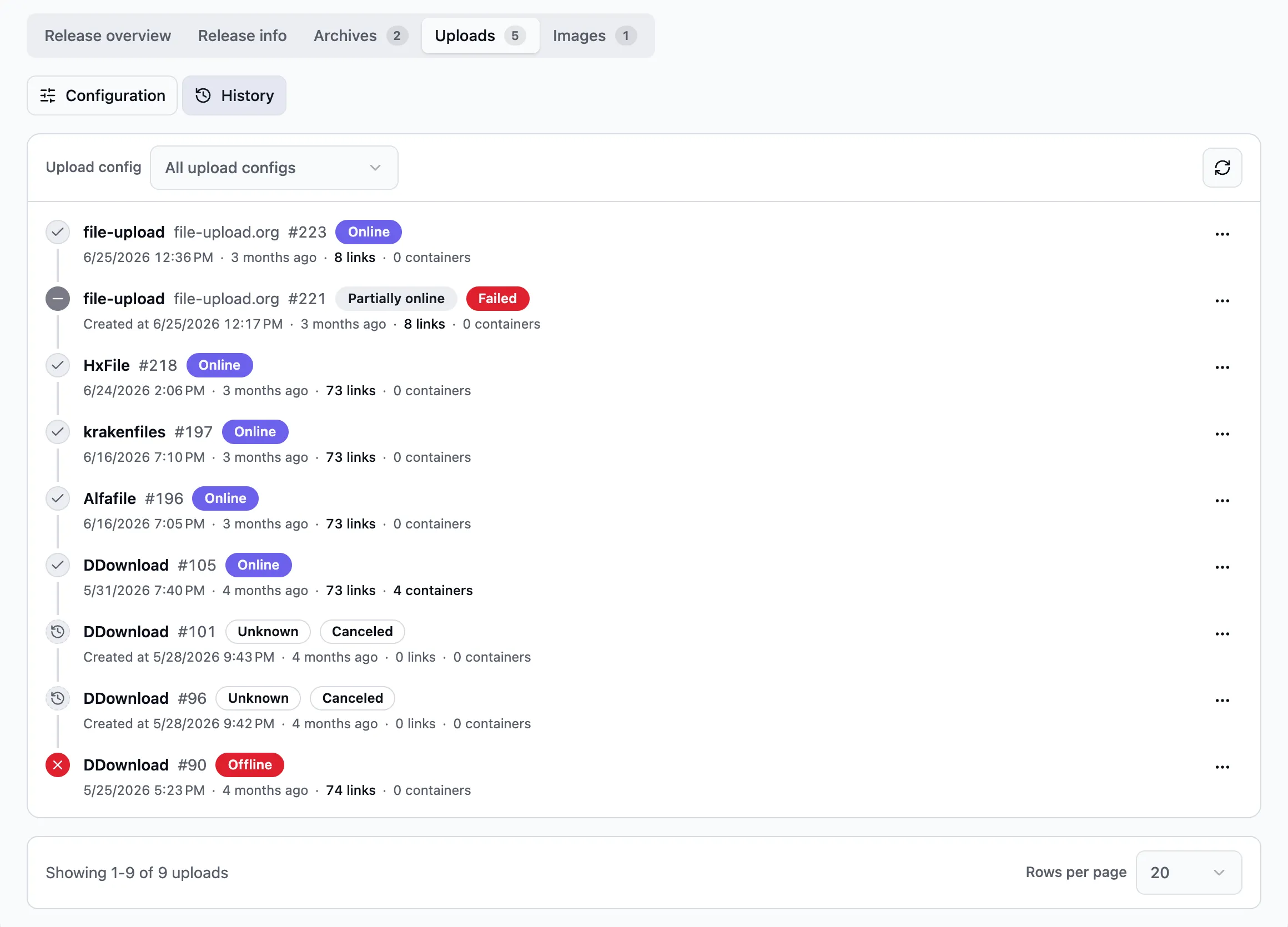
Section titled “Uploads”Configuration connects an archive configuration to a hoster account and optional link crypters.
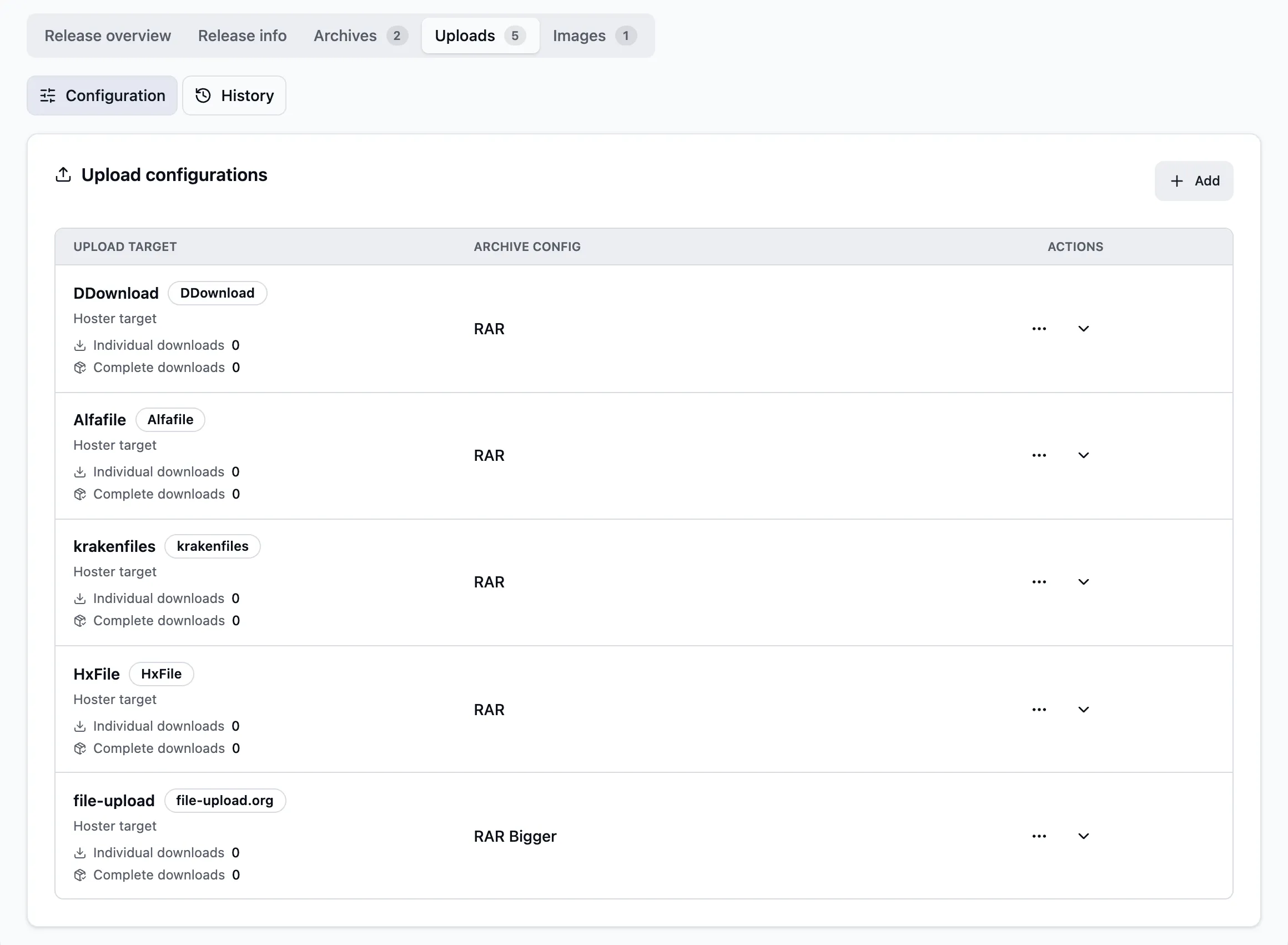
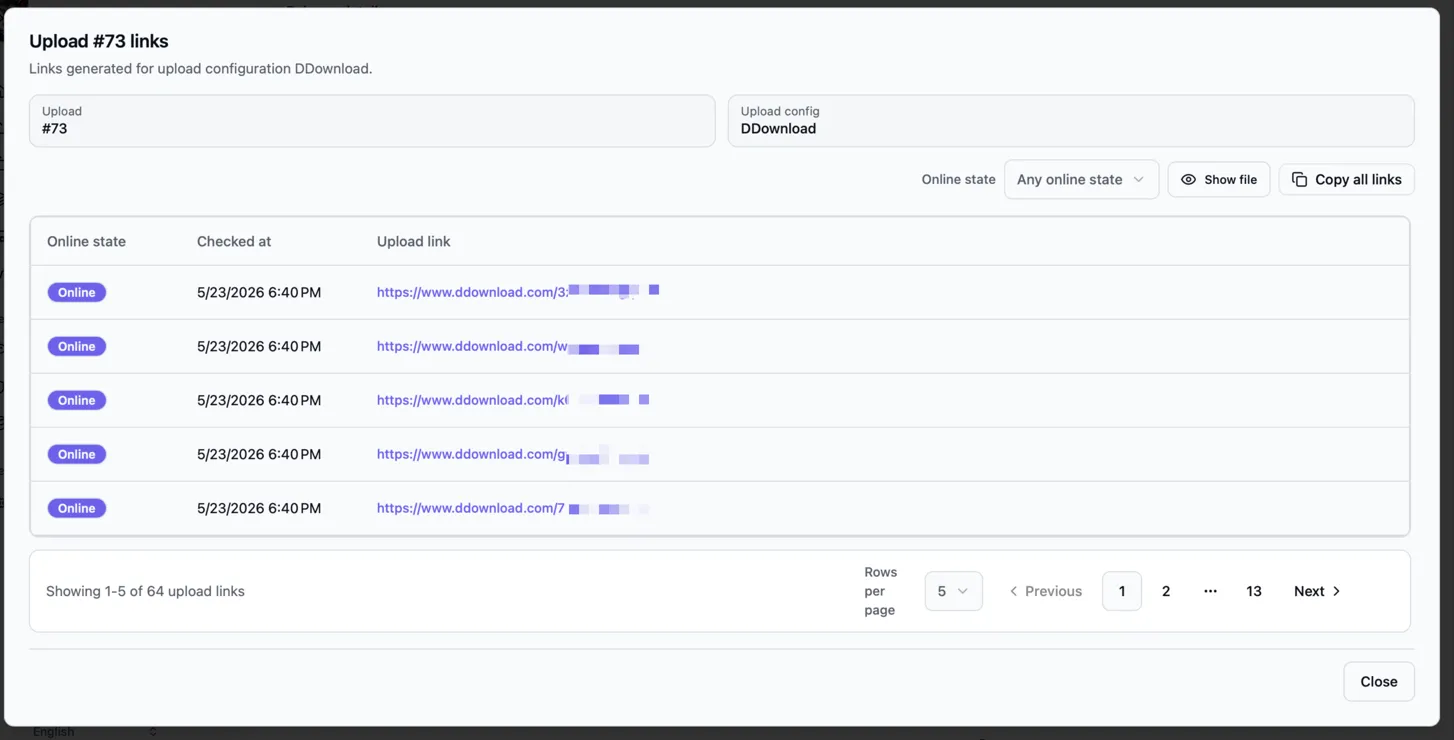
History lists all upload runs. Use the actions for a run to start a manual reupload, for example.
Images
Section titled “Images”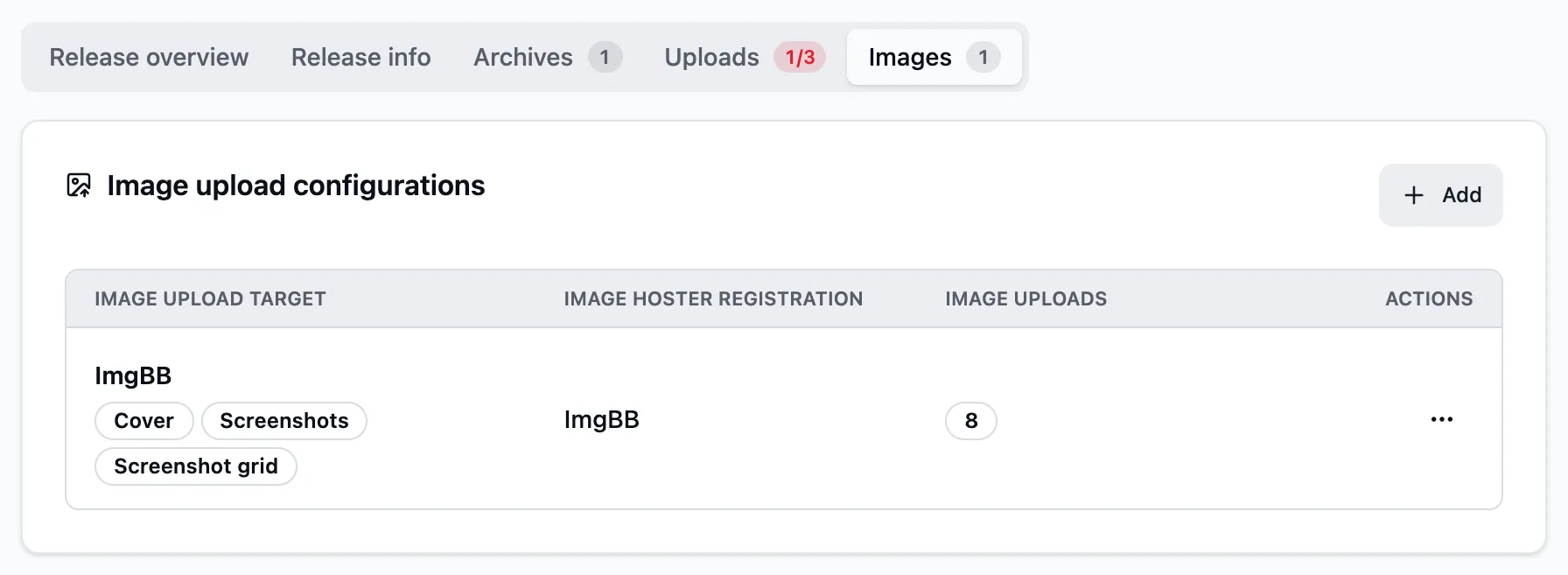
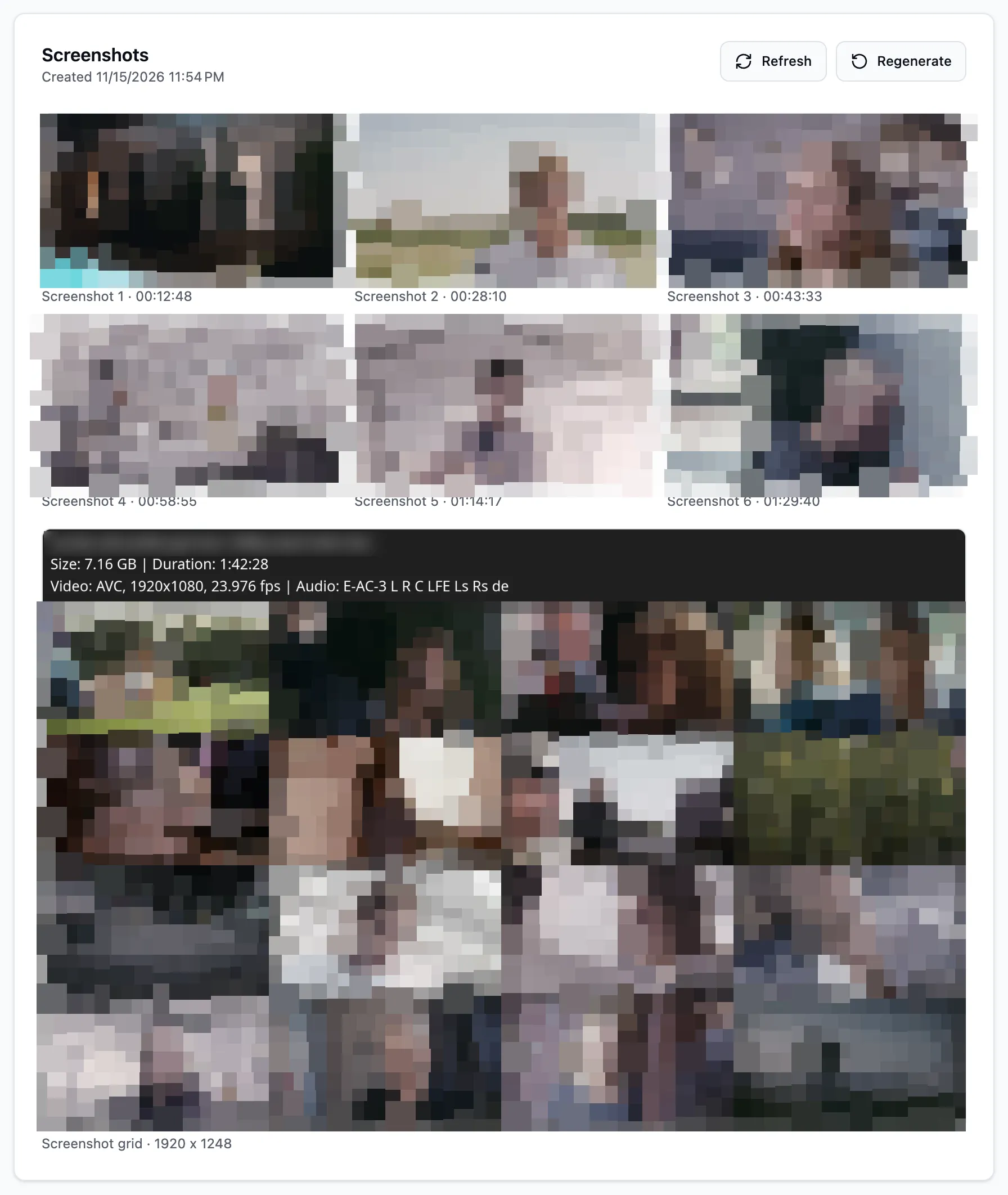
Cover uploads need a cover URL, for example from TMDB or xREL. An image upload configuration can also upload screenshots and the screenshot grid. The Image uploads list shows each upload’s image type: cover, screenshot, or screenshot grid.
The Screenshots card shows the created screenshots. Click an image to open it at full size.