
Import Existing Link Crypter Folders
Bearcat imports valid mirrors as completed uploads. If a release already exists, Bearcat adds the folders to it. For new releases, Bearcat also uploads the files to the remaining hosters in the template.
Bearcat supports FileCrypt, Hide.cx and ToLink. FileCrypt requires an API key with the LIST permission. For ToLink, Bearcat groups links by hoster domain.
-
Open Registrations > Crypters > Link crypter imports and click New import.
-
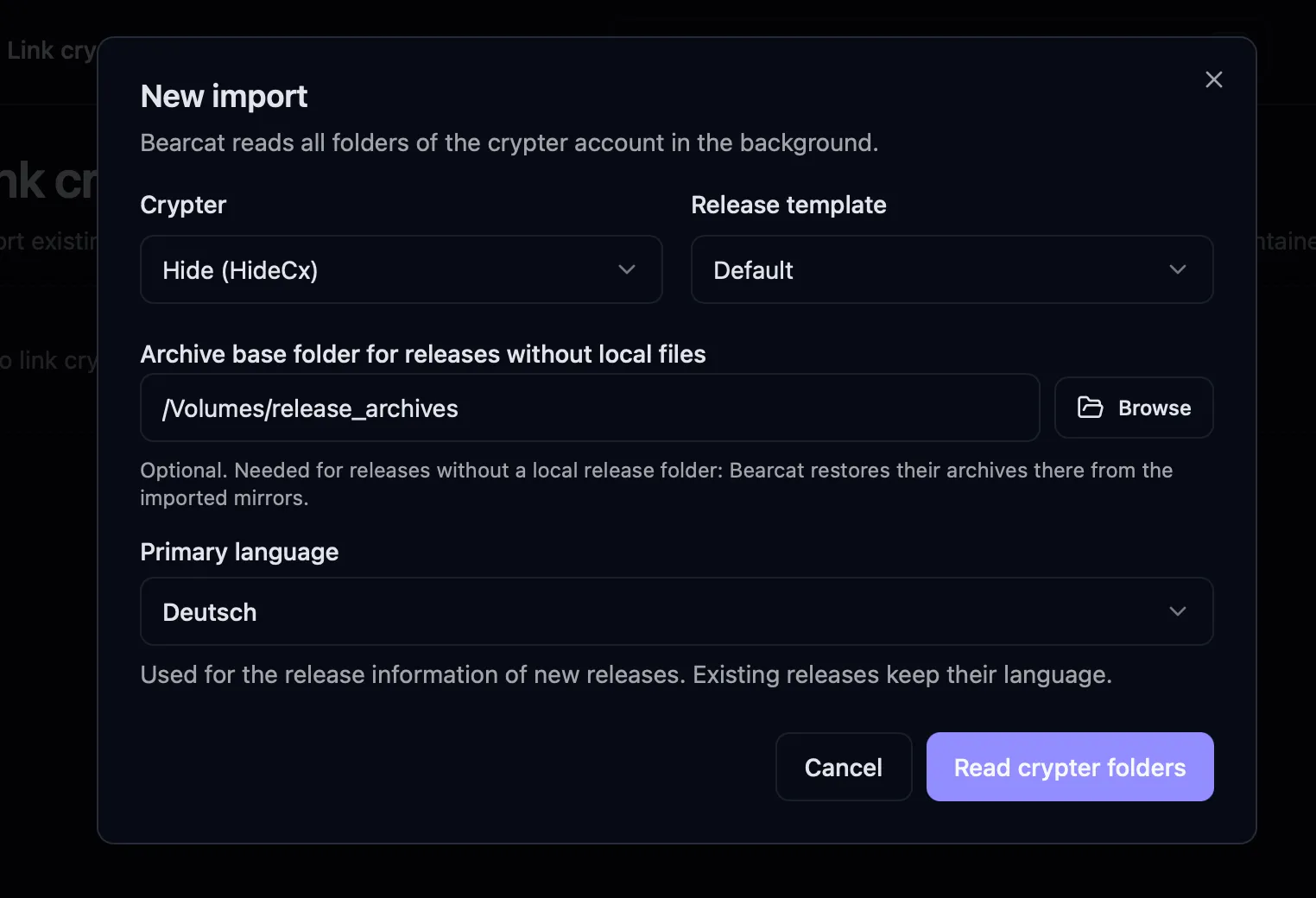
Choose the crypter registration and Default release template. You can also choose a Series template and Default language.
-
If local files are missing, set the Archive base folder for releases without local files. Bearcat can use this folder to restore archives from the mirrors when needed.
-
Click Read crypter folders. Bearcat skips folders with URLs it already knows.
-
Choose one account per hoster and click Check files.
-
Review the selection and click Start import.
Review
Section titled “Review”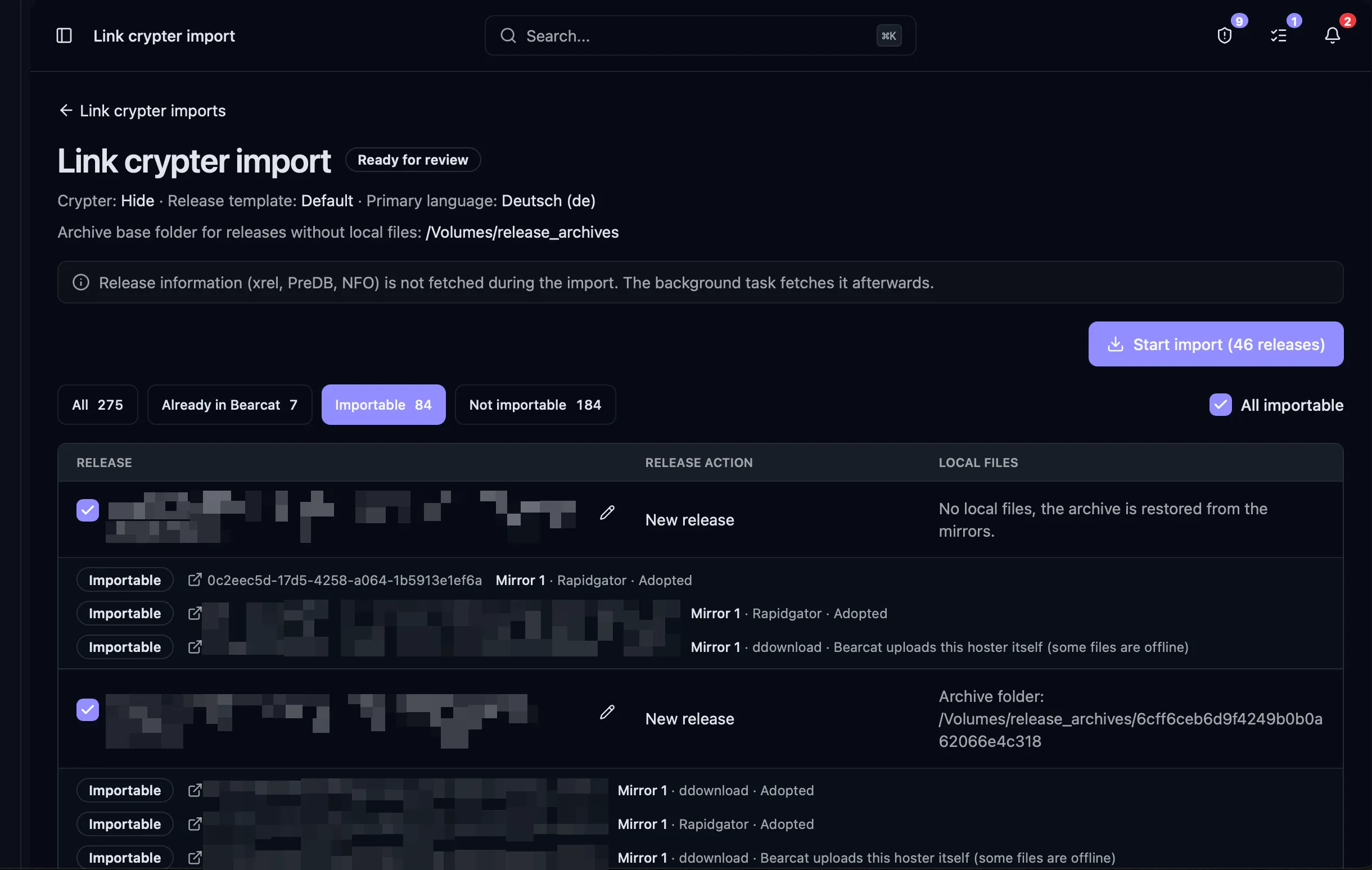
Bearcat groups folders by release name. Use Rename release to change the name. If you enter a name already in the list, Bearcat merges the folders and uses that entry’s template and language.
Search for part of a release or folder name, or use the status filter. Search ignores case. Use * to match any part of a name, as in Show.S01*-GRP.
The file check selects all importable folders. A release’s checkbox applies to all its folders. Select all matches applies to every page of filtered results. Template and primary language changes apply to the selected matches. Start import also includes selected importable folders hidden by the filters.
Template and language
Section titled “Template and language”Bearcat uses the default release template. If you chose a series template, Bearcat uses it when a folder contains several releases, the release name includes a season number or the name matches the template’s episode pattern.
Bearcat reads the primary language from the release name. If needed, it also checks the first archive name in folders with several releases. If neither name gives a language, Bearcat uses the default language. You can change the template and language in the preview.
Mirrors and local files
Section titled “Mirrors and local files”Each mirror needs an upload configuration for its hoster. For new releases, the configuration comes from the template. A mirror is valid when all its files are online and use a supported archive format (.rar, .r00, .7z, .7z.001). Additional mirrors must have the same file names as the first mirror Bearcat imports.
A folder needs at least one hoster that matches the release. A new release also needs a local release folder or a valid mirror. Without a release folder, Bearcat also needs an existing archive or an archive base folder.
With a managed template, Bearcat looks for an unused folder named after the release in the working directories and folder automation paths. If it finds none, it creates an unmanaged release. Bearcat looks for existing archives in the archive storage folders, working directories, archive base folder and their direct subfolders. It reuses the archive if the file names exactly match the first imported mirror.
Existing releases
Section titled “Existing releases”Bearcat matches existing releases by the name in the preview, ignoring case. If a mirror has the same links as an existing upload, Bearcat links the two. If the hoster has a newer upload, the container takes its links on the next update.
The import fails if the release already has a container from the same crypter account for one of the folder’s hosters.
Season folders
Section titled “Season folders”If a mirror contains several episodes, Bearcat creates one release per episode based on the archive names. The template’s collection detection must assign all episodes to the same collection.
If archives for several episodes share a local folder, Bearcat moves the archive parts into one subfolder per episode. The preview and completion notification show these moves.
The crypter folder becomes the container for the collection’s upload slot. The mirrors must belong to the same slot. Bearcat skips mirrors it cannot match to an episode. The import fails if the slot already has another container from the same crypter account or a release in the collection uses that account for its own containers. When importing a single episode, Bearcat can add its links to the existing collection container for that account.
After the import
Section titled “After the import”A folder with one mirror becomes the link crypter container for that hoster. A folder with several mirrors becomes the container for all hosters on the release.
Bearcat fetches release information in the background. New releases use the language from the preview. Existing releases keep their language. Imported releases and collections count as posted and stay out of the post queue.
Assign archive folders after import
Section titled “Assign archive folders after import”Bearcat marks missing local archives as Deleted. It can restore them from the mirrors when needed. If the files are already on disk, you can assign their folders:
-
Select the archives under Uploads and archives > Archives.
-
Click Change archive folders and choose a base path.
-
Review the folders Bearcat found and click Change archive folders to confirm.
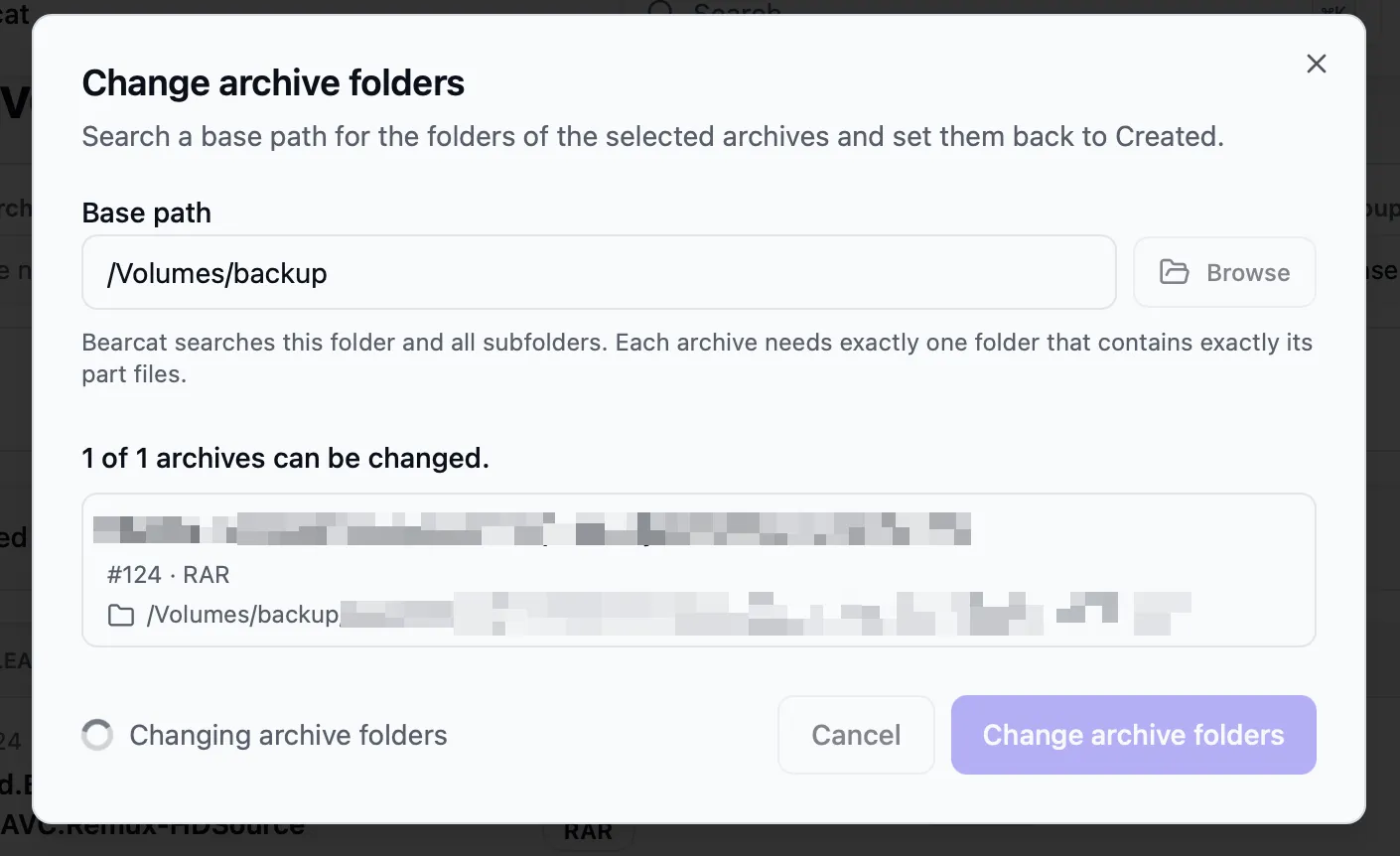
Bearcat also searches subfolders. It can assign folders to archives marked Deleted or Missing files if no newer archive exists. Each archive needs exactly one unused folder containing only its archive parts. For a managed release, that folder must be outside the release folder. After assignment, Bearcat marks the archive as Created.